Complete Visual Guide
Download or save this comprehensive infographic covering all Claude Code features, commands, and best practices.
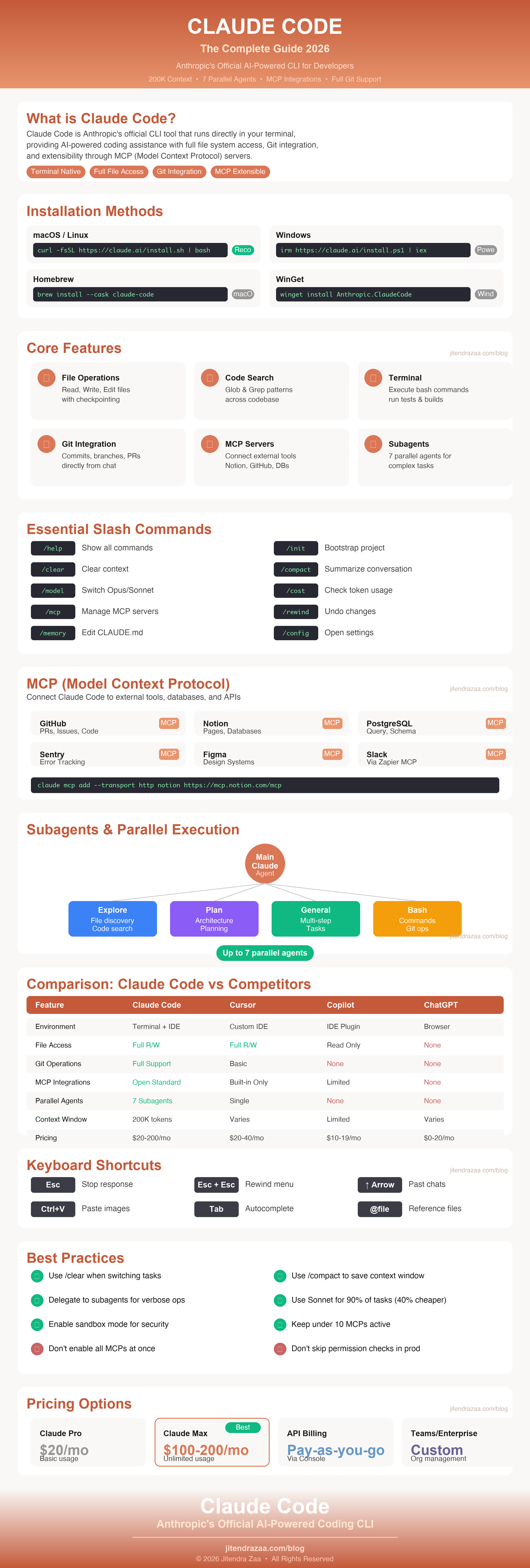
Right-click and "Save Image As" to download
Master Anthropic's AI-powered CLI tool - from basic setup to advanced MCP servers, subagents, Git workflows, and IDE integrations. Includes downloadable HD infographic!
Download or save this comprehensive infographic covering all Claude Code features, commands, and best practices.
According to Anthropic's official documentation, Claude Code represents a paradigm shift in how developers interact with AI assistants. Unlike web-based chatbots, Claude Code operates within your actual development environment, understanding your codebase context and executing real actions.
Traditional AI coding assistants require you to copy-paste code snippets back and forth. Claude Code eliminates this friction by:
Runs in your terminal with full shell integration and command execution
Understands your entire codebase with 200K token context window
Create commits, branches, and PRs without leaving the conversation
Connect to databases, APIs, and external tools via MCP
| Feature | Claude Code | Cursor / Windsurf | GitHub Copilot | Web-based AI |
|---|---|---|---|---|
| Environment | Terminal/CLI + IDE | Custom IDE (VS Code fork) | IDE Plugin | Browser |
| File System Access | Full read/write | Full read/write | Read only | None |
| Command Execution | Full terminal access | Integrated terminal | Limited | No |
| Git Operations | Full support (commits, PRs) | Basic support | None | None |
| External Integrations | MCP servers (open standard) | Built-in tools only | Limited | None |
| Context Window | 200K tokens | Varies by model | Limited | Varies |
| Subagents/Parallel | Up to 7 parallel agents | Single agent | No | No |
| Model Choice | Claude (Opus/Sonnet/Haiku) | Multiple (GPT-4, Claude, etc.) | GPT-4 based | Varies |
| Pricing | $20-200/mo or API | $20-40/mo | $10-19/mo | Free-$20/mo |
According to the Claude Code getting started guide, the recommended installation method is using the native binary installer, which provides the most stable experience.
| Requirement | Specification |
|---|---|
| Operating Systems | macOS 13.0+, Ubuntu 20.04+/Debian 10+, Windows 10+ (WSL or Git Bash) |
| RAM | 4GB minimum (8GB+ recommended) |
| Node.js | 18+ (only for deprecated NPM installation) |
| Network | Stable internet connection required |
| Shell | Bash or Zsh (recommended) |
curl -fsSL https://claude.ai/install.sh | bashirm https://claude.ai/install.ps1 | iexbrew install --cask claude-code
Homebrew (macOS) - Does not auto-update
winget install Anthropic.ClaudeCode
WinGet (Windows) - Does not auto-update
npm install -g @anthropic-ai/claude-code) is deprecated. Use the native binary installer for the best experience.After installation, run claude to start the authentication process. Claude Code supports multiple authentication methods:
Subscribe to Claude's Pro ($20/mo) or Max ($100-200/mo) plan for unified billing
Connect through Claude Console with OAuth for pay-as-you-go API usage
Centralized billing and team management for organizations
Configure with Amazon Bedrock, Google Vertex AI, or Microsoft Foundry
# Check installation
claude doctor

# Start Claude Code
claude

# Start with initial prompt
claude "explain this codebase"

# Resume last conversation
claude -c| File | Location | Purpose |
|---|---|---|
~/.claude/settings.json |
Home directory | User-level settings |
.claude/settings.json |
Project root | Project-specific settings (shared with team) |
.claude/settings.local.json |
Project root | Per-machine overrides (gitignored) |
~/.claude.json |
Home directory | MCP server configurations |
.mcp.json |
Project root | Project-scoped MCP servers |
Claude Code provides a rich set of slash commands that enable powerful interactions. Here are the essential commands every user should know.
| Command | Description | Use Case |
|---|---|---|
/help |
Show all available commands | Discover features |
/init |
Scan project and create CLAUDE.md | Bootstrap new projects |
/clear |
Clear conversation history | Start fresh context |
/compact |
Summarize conversation to save context | Long sessions |
/memory |
Edit CLAUDE.md memory files | Configure project context |
/config |
Open configuration interface | Change settings |
/model |
Switch between Claude models | Opus/Sonnet selection |
/cost |
Check current token usage | Monitor spending |
/mcp |
Manage MCP server connections | External integrations |
/rewind |
Rewind to previous checkpoint | Undo changes |
/export |
Export conversation to file | Save sessions |
| Shortcut | Action |
|---|---|
| Escape | Stop Claude's current response (not Ctrl+C which exits) |
| Escape + Escape | Open rewind menu / navigate previous messages |
| ↑ (Up Arrow) | Navigate through past chats |
| Ctrl + V | Paste images (not Cmd+V on macOS) |
| Tab | Autocomplete file paths and commands |
Use the @ symbol to reference files directly in your prompts:
# Reference specific files
> Analyze @src/auth.ts and suggest improvements

# Compare multiple files
> Compare @package.json with @package-lock.json

# Reference directories
> Explain the architecture in @src/components/

# Reference with line ranges (VS Code)
> Fix the bug in @src/utils.ts:42-58Claude Code automatically tracks file edits, allowing you to undo changes. Access the checkpointing feature by pressing Escape twice or using /rewind.
Claude Code provides specialized tools for file operations that are more reliable than bash commands. Understanding these tools helps you work more effectively.
Read file contents with line numbers, supports images and PDFs
Create or overwrite entire files
Make targeted string replacements in existing files
Search for files by pattern (e.g., **/*.ts)
Search file contents with regex patterns
Execute shell commands for system operations
| Task | Recommended Tool | Why |
|---|---|---|
| View file contents | Read |
Better than cat, includes line numbers |
| Create new file | Write |
Safer than echo/cat with heredoc |
| Modify specific lines | Edit |
Precise replacement, tracked by checkpoints |
| Find files by name | Glob |
Faster than find command |
| Search in file contents | Grep |
Regex support, better output format |
| Run git/npm/system commands | Bash |
Terminal operations that need shell |
# Find all TypeScript files
> Find all .ts files in the src directory

# Search for function definitions
> Search for "function authenticate" in the codebase

# Read and analyze a file
> Read @src/auth/login.ts and explain the authentication flow

# Create a new component
> Create a new React component called UserProfile in src/components/The Model Context Protocol (MCP) is an open standard introduced by Anthropic that allows Claude Code to connect to external tools, databases, and APIs without custom integrations.
| Transport | Use Case | Example |
|---|---|---|
| HTTP | Remote servers (recommended) | Notion, GitHub, Sentry |
| Stdio | Local processes | PostgreSQL, Airtable |
| SSE | Legacy (deprecated) | Older integrations |
# Add Notion integration
claude mcp add --transport http notion https://mcp.notion.com/mcp

# Add GitHub integration
claude mcp add --transport http github https://api.githubcopilot.com/mcp/

# Add Sentry integration
claude mcp add --transport http sentry https://mcp.sentry.dev/mcp# Add PostgreSQL database
claude mcp add --transport stdio db -- npx -y @bytebase/dbhub --dsn "postgresql://user:pass@host/db"
# Add Airtable
claude mcp add --transport stdio --env AIRTABLE_API_KEY=YOUR_KEY airtable -- npx -y airtable-mcp-serverclaude mcp list
List all configured MCP servers
claude mcp get <name>
Get details of a specific server
claude mcp remove <name>
Remove an MCP server
/mcp
Check MCP status within Claude Code
| Scope | Storage File | Purpose |
|---|---|---|
local (default) |
~/.claude.json |
Private to you, current project only |
project |
.mcp.json |
Shared with team via version control |
user |
~/.claude.json |
Available across all your projects |
PR reviews, issue management, code search
Read/write pages, search databases
Query databases, schema exploration
Error tracking, issue analysis
Design system access, component info
Channel access via Zapier MCP
According to Anthropic's subagents documentation, subagents are specialized AI assistants that operate independently for specific tasks, enabling parallel execution and isolated context management.
| Subagent | Purpose | Characteristics |
|---|---|---|
| Explore | File discovery, code search, codebase exploration | Fast, read-only, perfect for research |
| Plan | Codebase research for implementation planning | Used in plan mode, architectural decisions |
| General-purpose | Complex multi-step tasks | Both exploration and modification |
| Bash | Command execution specialist | Git operations, builds, tests |
The Task tool is how Claude delegates work to subagents. It can run up to 7 agents simultaneously for operations like:
You can create custom subagents by placing files in the .claude/agents/ directory:
# Create agents directory
mkdir -p .claude/agents

# View available subagents
/agents

# Create new subagent with guided setup
/agents createClaude Code has deep Git integration that makes version control seamless. According to the Git workflow documentation, you can manage branches, commits, and pull requests directly through natural language.
# Create and switch to a new branch
> Create a branch feature/rate-limiting and switch to it

# Implement a feature
> Implement rate limiting on auth endpoints

# Run tests
> Run the tests

# Commit changes
> Commit these changes

# Push and create PR
> Push and create a PR to main with a summary of changesClaude Code uses the gh CLI for GitHub operations. When you ask Claude to create a PR, it will:
Review all commits in the branch to understand changes
Create a comprehensive PR description with summary and test plan
Execute gh pr create with proper formatting
Provide the PR link for review
Claude Code can be integrated with GitHub Actions for automated workflows:
# Install GitHub App
/install-github-app
Once installed, you can:
Git worktrees allow checking out multiple branches in separate directories while sharing Git history. This is useful for parallel development tasks where you need to work on multiple features simultaneously.
feature/TICKET-123-description), commit message format, and common commands.Claude Code naturally respects Conventional Commits format:
# Good commit message format
feat: add rate limiting to auth endpoints
fix: resolve memory leak in connection pool
docs: update API documentation
refactor: simplify authentication flow
test: add unit tests for user serviceClaude Code offers extensive configuration options through settings files, hooks, and custom commands. Understanding these enables powerful automation and team-wide conventions.
Settings apply in order of precedence (higher overrides lower):
Organizational policies (highest priority)
.claude/settings.json - Team conventions
.claude/settings.local.json - Machine-specific
~/.claude/settings.json - Personal defaults
Here's a sample .claude/settings.local.json file that whitelists MCP tools and common Git operations for uninterrupted workflow:
{
  "permissions": {
    "allow": [
      "Bash(git status)",
      "Bash(git add *)",
      "Bash(git commit *)",
      "Bash(git push *)",
      "Bash(git pull *)",
      "Bash(git checkout *)",
      "Bash(git branch *)",
      "Bash(git merge *)",
      "Bash(git log *)",
      "Bash(git diff *)",
      "Bash(gh pr *)",
      "Bash(gh issue *)",
      "Bash(npm *)",
      "Bash(npx *)",
      "Bash(yarn *)",
      "Bash(pnpm *)",
      "mcp__notion__*",
      "mcp__github__*",
      "mcp__postgres__*",
      "mcp__sentry__*"
    ],
    "deny": [
      "Bash(rm -rf /)",
      "Bash(sudo *)",
      "Bash(chmod 777 *)"
    ]
  },
  "enableAllProjectMcpServers": true
}*) in permission patterns to allow variations of commands. For example, Bash(git commit *) allows git commit -m "message" and all other commit variations.Hooks allow you to run custom commands before or after Claude's tool execution. According to the hooks documentation, available hook events include:
| Hook Event | Description | Use Case |
|---|---|---|
PreToolUse |
Before tool execution | Validation, logging |
PostToolUse |
After tool completion | Formatting, cleanup |
SessionStart |
At session startup | Environment setup |
UserPromptSubmit |
When prompt is submitted | Input processing |
Notification |
When Claude sends notifications | Alerts, logging |
Stop |
When Claude finishes responding | Post-processing |
{
  "hooks": {
    "SessionStart": [{
      "matcher": "startup",
      "hooks": [{
        "type": "command",
        "command": "echo 'conda activate myenv' >> "$CLAUDE_ENV_FILE""
      }]
    }],
    "PostToolUse": [{
      "matcher": "Write",
      "hooks": [{
        "type": "command",
        "command": "prettier --write "$CLAUDE_FILE_PATH""
      }]
    }]
  }
}Create custom slash commands by adding markdown files to .claude/commands/:
# Create commands directory
mkdir -p .claude/commands

# Create a custom command
echo "Analyze this code for performance issues and suggest optimizations:" > .claude/commands/optimize.md

# Now you can use /optimize in Claude CodeFor more complex custom behaviors, create skills in .claude/skills/:
.claude/skills/
├── SKILL.md          # Main instructions (required)
├── templates/        # Templates for Claude to fill
├── examples/         # Expected output examples
└── scripts/ # Executable scriptsCLAUDE.md files provide persistent context that Claude remembers across sessions. The memory system uses a hierarchy:
| File Location | Scope | Purpose |
|---|---|---|
~/.claude/CLAUDE.md |
Global | Personal preferences across all projects |
/project/CLAUDE.md |
Project | Project conventions, shared with team |
/project/src/CLAUDE.md |
Directory | Directory-specific context |
/project/CLAUDE.local.md |
Personal | Machine-specific, gitignored |
# to add it to memory instantly. Example: # Always use 2-space indentationClaude Code integrates with popular IDEs to provide a seamless development experience. The VS Code extension is the most feature-rich integration.
Launch Visual Studio Code
Press Cmd+Shift+X (Mac) or Ctrl+Shift+X (Windows/Linux)
Search "Claude Code" and click Install
See real-time changes in the sidebar before accepting
Let Claude make edits without confirmation prompts
Reference specific lines with @file.ts:42-58
Open multiple Claude conversations in tabs
| Mode | Behavior | Best For |
|---|---|---|
| Normal | Claude asks permission for each action | Learning, careful editing |
| Plan | Claude describes plan and waits for approval | Complex changes |
| Auto-Accept | Claude makes edits without asking | Experienced users, trusted workflows |
Claude Code supports the entire JetBrains family including IntelliJ IDEA, PyCharm, WebStorm, and more:
Go to Settings → Plugins → Marketplace
Search "Claude Code" plugin
Set up authentication and preferences
Connect your terminal Claude session to VS Code:
# Connect to VS Code from external terminal
/ideBased on Anthropic's best practices guide, here are proven strategies for getting the most out of Claude Code.
Clear context when switching tasks to maintain performance
Summarize long conversations to save context window
Use Task tool for verbose operations like tests and logs
Avoid vague requests; provide clear, detailed prompts
| Strategy | Implementation | Impact |
|---|---|---|
| Monitor usage | Use /cost command |
Track spending in real-time |
| Reduce thinking tokens | MAX_THINKING_TOKENS=8000 |
Lower costs for simple tasks |
| Use Sonnet for most tasks | /model sonnet |
40% cost reduction vs Opus |
| Reserve Opus for complex work | Architectural decisions only | Optimize cost/quality tradeoff |
Enable sandbox mode for enhanced security:
/sandboxBenefits of sandboxing:
Only grant the permissions Claude actually needs
Restrict network commands with explicit deny rules
Implement SAST/DAST scanning in your pipeline
Keep permission modes active in production environments
@file.ts) instead of pasting code/init to bootstrap project contextFor experienced users who want Claude to work autonomously without confirmation prompts, there are several ways to enable uninterrupted execution:
# Start Claude with auto-accept all permissions
claude --dangerously-skip-permissions

# Shorter alias
claude -yA safer approach is to pre-approve specific commands in your settings file:
// .claude/settings.local.json
{
  "permissions": {
    "allow": [
      "Bash(git *)",
      "Bash(npm run *)",
      "Bash(npx *)",
      "Read",
      "Write",
      "Edit",
      "Glob",
      "Grep"
    ]
  }
}In the VS Code extension, you can enable auto-accept mode from the settings:
Click the Claude Code icon in VS Code sidebar
Find the settings icon in the panel header
Toggle "Auto-accept edits" to allow Claude to make changes without prompts
For automation pipelines, use headless mode with streaming output:
# Run Claude in headless mode (non-interactive)
claude -p "run tests and fix any failures" --output-format stream-json

# With auto-accept for full automation
claude -p "refactor auth module" -y --output-format json| Mode | Flag/Setting | Use Case | Safety Level |
|---|---|---|---|
| Full Auto | -y or --dangerously-skip-permissions |
Trusted local dev | Low |
| Allowlist | permissions.allow in settings |
Team environments | Medium |
| VS Code Auto | Auto-accept toggle | IDE workflow | Medium |
| Headless | -p with -y |
CI/CD pipelines | Low |
| Normal | Default (no flags) | Production, learning | High |
Claude Code is Anthropic's official CLI tool that runs directly in your terminal, providing AI-powered coding assistance with deep file system access, Git integration, and MCP server connections. Unlike ChatGPT, it operates locally in your development environment with full context of your codebase, can read and write files, execute commands, and manage Git operations without leaving the conversation.
Install Claude Code using the native binary installer. On macOS/Linux, run curl -fsSL https://claude.ai/install.sh | bash. On Windows PowerShell, run irm https://claude.ai/install.ps1 | iex. You can also use Homebrew on macOS with brew install --cask claude-code. After installation, run claude doctor to verify your setup.
MCP (Model Context Protocol) is an open standard by Anthropic that allows Claude Code to connect to external tools, databases, and APIs. It eliminates custom integrations by providing a standardized way to add capabilities like Notion, GitHub, PostgreSQL, and Slack. You can add MCP servers using commands like claude mcp add --transport http notion https://mcp.notion.com/mcp.
Subagents are specialized AI assistants that operate independently for specific tasks. Claude Code has built-in subagents like Explore (for file discovery), Plan (for codebase research), and General-purpose (for complex multi-step tasks). They enable parallel execution of up to 7 agents simultaneously, dramatically speeding up complex workflows like codebase exploration and multi-file analysis.
Claude Code requires a Claude Pro ($20/month), Max ($100-200/month for unlimited usage), or Teams/Enterprise subscription. Alternatively, you can use pay-as-you-go API billing through the Claude Console. Claude Max is recommended for heavy users who want unlimited usage without worrying about token costs.
Continue your AI and development tools learning journey with these related guides from JZ Blog:
Reference guide for technical terms and abbreviations used throughout this article.
