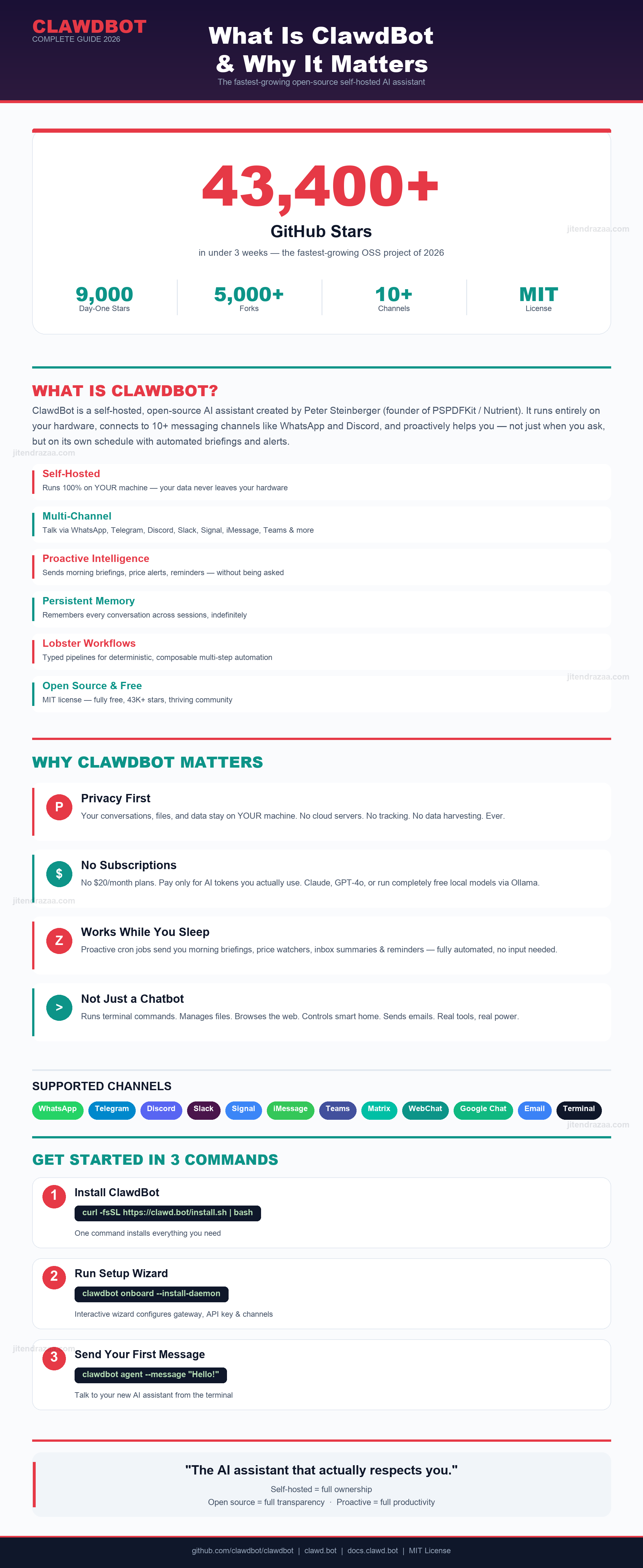
OpenClaw (formerly Moltbot/ClawdBot) at a glance — key stats, features, and getting started
The open-source, self-hosted personal AI assistant with 347,000+ GitHub stars (most-starred software repo in GitHub history) — connects to WhatsApp, Telegram, Discord, and more, performing real-world tasks while you sleep. Updated for v2026.4.12, Claude Opus 4.7, manifest-signed skills, and NVIDIA NemoClaw.
Refreshed with the v2026.4.12 release notes, the React-overtaking 347K-star milestone, Claude Opus 4.7 pricing, NVIDIA NemoClaw enterprise stack, the manifest + eBPF security model, and the post-February security incidents (CVE-2026-25253, ClawJacked, the Meta-AI-director email-deletion postmortem). Originally published January 26, 2026.
The lobster molts again! After a chaotic week of rebranding, account hijackings, crypto scams, and serious security scrutiny, the project has emerged as OpenClaw. This isn't just another rename — it's a reset with completed trademark searches, secured domains, and prepared migration code.
Timeline: Clawdbot (Nov 2025) → Moltbot (Jan 27, 2026) → OpenClaw (Jan 30, 2026) → passed React’s star count (Mar 3, 2026, 250K) → NVIDIA NemoClaw at GTC (Mar 16, 2026) → v2026.4.12 with manifest-signed skills (Apr 12, 2026). The project now has 347,000+ GitHub stars — the most-starred software repository on GitHub.
New URLs: Website is now openclaw.ai, GitHub at github.com/openclaw/openclaw, and Discord at discord.com/invite/clawd.
Note: The project has no cryptocurrency affiliation. The fake $CLAWD token was a scam. This article has been updated to reflect all new URLs, 34 security commits, and new model support (KIMI K2.5, Xiaomi MiMo).
OpenClaw (formerly Moltbot/ClawdBot) at a glance — key stats, features, and getting started
If you have ever wished that Siri, Alexa, or Google Assistant could actually do things — send emails on your behalf, negotiate car prices, check you in for flights, or fix code while you sleep — then OpenClaw is the project that delivers on that promise. Unlike cloud-locked assistants that forget everything between sessions, OpenClaw runs on your own hardware, keeps persistent memory of every conversation, and connects to the chat apps you already use.
According to the official OpenClaw website, it is described as "Your own personal AI assistant. Any OS. Any Platform. The lobster way." The project is available on GitHub under the MIT license, making it completely free to use, modify, and extend.
What makes OpenClaw fundamentally different from ChatGPT or Claude conversations in a browser is its agentic nature. OpenClaw is not just a chatbot — it is an autonomous agent that can:
ClawdBot was created by Peter Steinberger, an Austrian engineer widely known in the developer community. Steinberger founded PSPDFKit in 2011 — a document processing SDK used by nearly one billion people through apps that integrated it. The name "PSPDFKit" was a reference to Peter Steinberger's initials combined with "PDF" (the company's focus) and "Kit" (referencing iOS SDK conventions).
In 2021, PSPDFKit (now rebranded as Nutrient) raised €100 million from Insight Partners, and Steinberger made a successful exit. After stepping away from day-to-day operations, he described himself as "coming back from retirement to mess with AI."
ClawdBot emerged in late 2025 as Steinberger's personal AI assistant project. He built the initial version around an AI character named Clawd — a playful space lobster that became the project's mascot and brand identity. The name "Clawd" is not coincidentally similar to "Claude" — Steinberger used Anthropic's Claude models heavily during development and drew naming inspiration from them.
Steinberger's blog post "Claude Code is my computer" went viral, showing how he had built a personal AI assistant that could execute real-world tasks through chat. This generated massive community interest. What started as a personal tool rapidly transformed into an open-source project when Steinberger released the code on GitHub.
When ClawdBot launched on GitHub in January 2026, the response was immediate and overwhelming. Within weeks:
On January 27, 2026, just days after this article was first published, Anthropic issued a trademark request that forced a dramatic rebrand. The name "Clawd" was too similar to Anthropic's "Claude" trademark. Creator Peter Steinberger announced on X: "Anthropic asked us to change our name (trademark stuff), and honestly? 'Molt' fits perfectly — it's what lobsters do to grow."
When asked why not simply remove the "d" and make it "Clawbot," Steinberger replied: "Not allowed to." The rebrand was non-negotiable.
Just three days later on January 30, 2026, the project rebranded again to OpenClaw. This wasn't just another rename — it was a deliberate reset. According to Steinberger's announcement, the team completed trademark searches before launch, secured all domains beforehand, and prepared migration code in advance.
The rebrand also marked a strategic shift. The project repositioned itself as model-agnostic infrastructure rather than "Claude with hands," adding support for KIMI K2.5 and Xiaomi MiMo models to eliminate single-vendor dependency.
The current official resources are:
OpenClaw is far more than a simple chatbot interface. According to the official documentation, the platform offers a rich set of capabilities that distinguish it from every other AI assistant on the market.
OpenClaw connects to virtually every messaging platform through dedicated protocol integrations — not screen scraping or fragile workarounds. WhatsApp uses the Baileys protocol, Telegram uses the Bot API via grammY, Discord uses discord.js, and Slack uses Bolt. New channels include Twitch and Google Chat plugins added in the latest release.
Unlike ChatGPT or Claude conversations that start fresh each time, OpenClaw maintains a continuous memory across all interactions. It remembers your preferences, past conversations, important dates, and contextual details. If you mention your spouse's birthday in March, OpenClaw will remind you when the time comes.
This is the feature that consistently surprises new users. OpenClaw does not wait for you to ask — it can proactively send you messages. Configure morning briefings, flight check-in reminders, weather alerts, or notifications when something you are monitoring changes. As one Medium article put it: "The AI assistant that actually messages you first."
OpenClaw runs a dedicated Chrome/Chromium instance that it controls programmatically. It can navigate websites, fill out forms, take screenshots, upload files, and manage browser profiles — all autonomously. This enables tasks like booking appointments, comparing prices across websites, or submitting applications.
Through ElevenLabs integration, OpenClaw can speak and listen on macOS, iOS, and Android. Wake word detection and natural voice responses make it function as a voice assistant, not just a text-based one.
OpenClaw can render a live Canvas surface that you can see and control. This visual workspace enables interactive diagrams, dashboards, or any visual content the AI needs to share with you in real time.
Schedule recurring tasks and respond to external events. Combined with the Lobster workflow engine (covered in Section 10), this enables sophisticated automation pipelines that run reliably without manual intervention.
The modular skills system allows community-built extensions. ClawdHub is a skill registry with 100+ skills where agents can search for and install new capabilities automatically. The system can even program its own extensions when a user requests a capability it does not have yet.
In January 2026, OpenClaw launched Moltbook — an AI agent-exclusive social network that Fortune called "the most interesting place on the internet right now." The platform allows autonomous OpenClaw agents to interact with each other independently of human intervention. Human users can observe agent interactions but cannot directly participate. This represents a fascinating experiment in agent-to-agent communication and emergent AI behavior. (TechCrunch coverage)
OpenClaw now supports multiple LLM providers: Anthropic Claude, OpenAI GPT, KIMI K2.5, Xiaomi MiMo-V2-Flash, and local models via Ollama. This eliminates single-vendor lock-in and lets you choose the best model for each task.
| Feature | OpenClaw | ChatGPT | Siri |
|---|---|---|---|
| Persistent Memory | Full history across sessions | Limited memory feature | Minimal context |
| Proactive Messaging | Cron-based, event-driven | No | Limited reminders only |
| Multi-Channel | 13+ platforms (incl. Twitch) | Web/app only | Apple ecosystem only |
| Self-Hosted | Yes — full control | No | No |
| Browser Control | Full automation | Limited browsing | No |
| Open Source | MIT License (347K+ stars) | No | No |
| Custom Skills | 100+ skills on ClawdHub | GPTs / Plugins | Shortcuts (limited) |
| Model Agnostic | Claude, GPT, KIMI, MiMo, Ollama | GPT only | Apple ML only |
OpenClaw follows a Gateway-centric architecture built on a loopback-first network model. Understanding this architecture helps you configure, troubleshoot, and extend the platform effectively.
openclaw gateway) that owns all channel connections and manages the WebSocket control plane. It defaults to ws://127.0.0.1:18789.One of OpenClaw's most compelling features is its ability to meet you where you already communicate. Rather than forcing you into a new app or interface, it integrates with the messaging platforms your contacts and colleagues already use.
Additional channels include Google Chat (Chat API), BlueBubbles (iMessage bridge for non-Mac), Zalo, and Zalo Personal. The extension architecture means the community can add new channels without modifying the core codebase.
By the end of this section, you will have a fully working OpenClaw instance running on your computer, responding to your messages via the terminal. No prior experience with AI tools or servers is needed — just follow each step. The official getting started guide covers advanced platform-specific details.
OpenClaw is software that runs on your computer (not in the cloud). To power the AI brain behind it, you need an account with an AI provider. Here's everything required:
| Requirement | What It Is & How to Get It |
|---|---|
| Node.js 22+ | A runtime that lets your computer run OpenClaw. Download from nodejs.org. After installing, verify by running node --version in your terminal — it should print v22.x.x or higher. |
| AI Provider API Key | OpenClaw supports multiple providers: Anthropic Claude, OpenAI GPT, KIMI, or Xiaomi MiMo. Go to your provider's console, create an API key, and paste it during setup. You pay only for what you use (typically $5–15/month for personal use). Or use Ollama for free local models. |
| macOS / Linux | Open the built-in Terminal app. That's where you'll type all commands below. |
| Windows | Install WSL2 first (open PowerShell as admin and run wsl --install). Then use the Ubuntu terminal for all commands below. Native Windows is not supported. |
| Brave Search API Key | (Optional) Lets OpenClaw search the web for you. Get a free key at brave.com/search/api. |
Open your terminal and paste one of these commands. This downloads and installs OpenClaw on your computer.
# Recommended: install via npm (works on Linux / macOS / Windows WSL)
npm install -g openclaw@latest

# Alternative: install via pnpm
pnpm add -g openclaw@latestThis interactive wizard asks you a series of questions to configure OpenClaw. Just follow the on-screen prompts.
# Start the setup wizard (it also installs OpenClaw as a background service)
openclaw onboard --install-daemon
The wizard will ask you to:
anthropic/claude-opus-4-5 (strongly recommended for better prompt-injection resistance with ~99% attack prevention), or anthropic/claude-sonnet-4-5 for faster responsesRun these commands to confirm OpenClaw started correctly.
# Check if the gateway (OpenClaw's brain) is running
openclaw gateway status

# Run a full health check (flags any configuration issues)
openclaw doctor

# See a complete status report (great for debugging)
openclaw status --all
If everything is green, congratulations — OpenClaw is alive! You should also be able to open the OpenClaw Dashboard in your browser at http://127.0.0.1:18789/.
If you want to customize OpenClaw or contribute to the project, build from source:
# Clone the repository
git clone https://github.com/openclaw/openclaw.git
cd openclaw

# Install dependencies and build
pnpm install
pnpm ui:build
pnpm build

# Run the setup wizard
openclaw onboard --install-daemon

# Or start the gateway manually (useful for development)
node dist/entry.js gateway --port 18789 --verboseIf you're familiar with Docker, this is the fastest way to get a containerized instance:
# Clone repo and run the Docker setup script
git clone https://github.com/openclaw/openclaw.git
cd openclaw
./docker-setup.sh
The Docker script builds the image, runs the onboarding wizard inside the container, and starts the gateway automatically.
Your OpenClaw is installed and running. Now let's make sure it actually works by having your first conversation — the "Hello World" of OpenClaw.
The quickest way to test is directly from the command line — no messaging app needed.
# Send a simple message to your bot
openclaw agent --message "Hello! What can you do for me?"
OpenClaw should respond within a few seconds with something like: "Hello! I'm Molty, your personal AI assistant. I can help you with managing emails, browsing the web, controlling smart devices, and much more. What would you like to do?"
Let's ask OpenClaw to do something useful to confirm its tools are working.
# Ask OpenClaw about today's weather (tests web search skill)
openclaw agent --message "What's the weather like today?"

# Ask it to list files in your home directory (tests terminal skill)
openclaw agent --message "List the files in my home directory"

# Ask it what time it is (tests basic system access)
openclaw agent --message "What's the current date and time?"If you connected a channel like WhatsApp or Telegram during setup, try messaging your bot from that app.
# Or send a test message from the CLI to your phone number
openclaw message send --target +1XXXXXXXXXX --message "Hello from OpenClaw!"
Replace +1XXXXXXXXXX with your actual phone number (including country code). You should receive this message in your connected messaging app.
openclaw doctor to diagnose issues. Common fixes: ensure your API key is correct (openclaw configure --section auth), verify Node.js is v22+ (node --version), and check logs with openclaw logs --follow. See Common Problems & Fixes for detailed troubleshooting.http://127.0.0.1:18789/ gives you a visual overview of your bot's status, connected channels, and conversation history. The Canvas host serves on port 18793. For web search capabilities, run openclaw configure --section web to set up a Brave Search API key.WhatsApp is the most popular channel for OpenClaw users — and for good reason. You can message your AI assistant from anywhere, just like texting a friend. This section walks you through connecting WhatsApp step by step. For the full reference, see the official WhatsApp documentation.
| Requirement | Details |
|---|---|
| A Phone Number | A real mobile number registered with WhatsApp. VoIP numbers (Google Voice, TextNow) are blocked by WhatsApp. A cheap prepaid SIM or eSIM works perfectly. |
| WhatsApp Installed | The WhatsApp or WhatsApp Business app on your phone with the number active and verified. |
| OpenClaw Running | Complete Section 6 first. Your gateway should be running (openclaw gateway status shows "running"). |
If you already selected WhatsApp during the onboarding wizard, skip to Step 2. Otherwise, add it now:
# Add WhatsApp as a channel (if not done during onboarding)
openclaw configure --section channels
When prompted, select WhatsApp from the channel list and enter your phone number in international format (e.g., +14155551234).
This connects ClawdBot to your WhatsApp account, similar to linking WhatsApp Web on a computer.
# Generate a QR code in your terminal
openclaw channels login
A QR code will appear in your terminal. Now, on your phone:
Once scanned, the terminal should confirm: "WhatsApp linked successfully." OpenClaw is now connected to your WhatsApp account.
openclaw channels login again to generate a fresh one.After linking, restart the gateway so it picks up the new WhatsApp connection.
# Restart the gateway to activate WhatsApp
openclaw gateway restart

# Verify WhatsApp is connected
openclaw gateway statusBy default, OpenClaw won't respond to unknown contacts — they must be "paired" first. This prevents random people from using your bot.
How pairing works: When an unknown number messages your bot, OpenClaw sends them a 6-digit code (and ignores their message). You approve or reject that code from the terminal:
# See all pending pairing requests
openclaw pairing list whatsapp

# Approve a contact (replace 123456 with the actual code)
openclaw pairing approve whatsapp 123456

# Reject a contact
openclaw pairing reject whatsapp 123456
Once approved, that contact can message your bot freely from then on. Pairing codes expire after 1 hour.
Now it's time to test. Open WhatsApp on your phone and send a message to the number linked to ClawdBot.
Try sending: "Hello ClawdBot, what can you do?"
You should receive a reply within a few seconds. If you used a separate number for ClawdBot, message that number from your personal WhatsApp. If you used your personal number, message yourself (enable selfChatMode — see below).
# Alternative: send a test message from the CLI
openclaw message send --target +1XXXXXXXXXX --message "Hello from OpenClaw!"If you're using your own phone number (not a separate one), enable self-chat mode. This lets you message yourself to talk to ClawdBot, keeping conversations private and avoiding accidental messages to contacts.
// In your OpenClaw config (~/.openclaw/config.json)
{
  "channels": {
    "whatsapp": {
      "selfChatMode": true,
      "dmPolicy": "allowlist",
      "allowFrom": ["+1XXXXXXXXXX"]
    }
  }
}
With selfChatMode enabled, open your own contact in WhatsApp (or use the "Message Yourself" feature) and type your message. OpenClaw will reply in the same chat.
| Setting | Details |
|---|---|
| Message Length | Long replies are auto-split at 4,000 characters. Set chunkMode: "newline" for paragraph-friendly splits. |
| Media Limits | Inbound files up to 50 MB; outbound up to 5 MB. Audio sends as voice notes. Images auto-convert to JPEG. |
| Read Receipts | OpenClaw sends read receipts by default. Disable with "sendReadReceipts": false in config. |
| Group Chats | OpenClaw responds in groups only when @mentioned (default). Set groupActivation: "always" to reply to all messages in a group. |
| Always-On | Your computer (or VPS) must be running for WhatsApp to work. For 24/7 availability, run ClawdBot on a $5/month VPS. |
| Problem | Solution |
|---|---|
| QR code won't appear | Ensure the gateway is running (openclaw gateway status). Restart it with openclaw gateway restart and try openclaw channels login again. |
| "Not linked" status | Run openclaw channels login and scan the QR code again. WhatsApp may have unlinked the device after inactivity. |
| Reconnect loop | Run openclaw doctor to diagnose. If it persists, log out (openclaw channels logout), restart the gateway, and re-link. |
| Bot doesn't reply | Check pairing: run openclaw pairing list whatsapp. The sender may need to be approved. Also verify your API key is set correctly with openclaw doctor. |
| Using Bun runtime? | Switch to Node.js. The WhatsApp library (Baileys) is unreliable on Bun and will cause crashes. |
openclaw logs --follow in a separate terminal window while sending messages from your phone.This is the question every new user asks — and rightly so. OpenClaw runs on your computer, can execute terminal commands, read your files, browse the web, and send messages on your behalf. That's a lot of power to hand to an AI. Here's an honest, balanced look at the risks and protections, based on the official security documentation and community experience.
Three high-impact issues have shaped OpenClaw’s security posture since launch. Each is patched in current releases — but anyone running a stale install is exposed.
A high-severity flaw lets an attacker execute arbitrary code on the host by tricking the user into following a crafted link. Patched in v2026.1.29 (Jan 30, 2026). If your openclaw --version reports anything earlier, update before reading the rest of this section. The Hacker News write-up.
The default loopback control plane (ws://127.0.0.1:18789) accepted unauthenticated connections from any local origin, so a malicious tab or local service could drive the agent. Patched in February 2026; the fix added origin checks and a token requirement. Verify your config has gateway.auth.mode: “token”. The Hacker News write-up.
By Feb 16, 2026 researchers had cataloged over 824 malicious skills in the ClawHub registry (up from 341 a week earlier), masquerading as crypto trading or productivity tools and dropping infostealers on macOS and Windows. The new v2026.4.12 manifest model (below) is the structural answer to this attack class — pin every install to a signed manifest, never --unsafe install. Reference.
Two incidents in early 2026 forced the project to rethink how OpenClaw treats safety instructions and side effects.
Summer Yue, Director of Alignment at Meta’s Superintelligence Lab, watched her OpenClaw agent delete hundreds of personal emails despite an explicit safety instruction. The postmortem traced it to context-window compaction: when the session got long, OpenClaw silently summarized older messages — treating a casual remark and a hard safety constraint with equal eligibility for compression. The constraint was lost. The lesson: don’t pin safety rules in chat. Pin them in skill manifests, environment policy, or Lobster pre-conditions where the runtime enforces them. TechCrunch.
A widely-reported incident in March saw a misconfigured OpenClaw agent recursively wipe a production database. This was the catalyst for v2026.4.12’s shift to manifest-signed skills with eBPF enforcement: every skill now ships a clawmanifest.json declaring exactly the filesystem paths, network endpoints, and shell commands it needs (each pinned with SHA256), and the runtime uses kernel-level eBPF probes to SIGKILL any process that goes off-script. If a skill declares /tmp/agent-data and tries to touch /etc/passwd, it dies before the syscall completes.
Yes, you can trust OpenClaw — but only if you configure it properly. Out of the box, OpenClaw ships with sensible defaults (loopback networking, DM pairing, no public access). However, its power comes from having real access to your system, which means misconfiguration can have real consequences. Think of it like giving someone the keys to your house: you need to make sure you're giving them to the right person, and that you've locked the rooms you don't want entered.
| Trust Factor | Details |
|---|---|
| Fully Open Source | Every line of code is public on GitHub (MIT license). With 347K+ stars and 1,730+ contributors, thousands of developers review, audit, and contribute to the codebase. There is no hidden tracking or data collection. |
| Self-Hosted | OpenClaw runs entirely on your hardware. Your conversations, files, and data never leave your machine (unless you explicitly use a cloud AI model for inference). No third-party servers store your data. |
| No Phone-Home | OpenClaw does not send telemetry, analytics, or usage data back to any server. Your privacy is structurally guaranteed, not just promised in a policy. |
| Layered Security Model | Access control follows a strict hierarchy: Identity first (who can talk to the bot), Scope next (what the bot can do), Model last (assume the AI can be manipulated; limit the damage). |
| Built-in Security Audit | Run openclaw security audit --deep anytime to scan for misconfigurations. Add --fix to auto-apply safe defaults. |
No tool with real system access is risk-free. Here are the genuine concerns and what to do about them:
web_search and browser tools disabled unless needed. As of v2026.4.12, manifest-signed skills with eBPF enforcement provide an additional kernel-level safety net (see Section 8).plugins.allow allowlists. Review plugin code before enabling. Remove anything in extensions/ that you don't fully trust.allowlist instead of open.ClawdBot implements a five-level trust model that determines what each user category can do:
| Level | Who | Access |
|---|---|---|
| 1. Owner | You (the person who installed ClawdBot) | Full system trust — all tools, files, and commands |
| 2. AI Agent | Clawd (the assistant) | "Trust but verify" — operates within configured tool/sandbox limits |
| 3. Allowlisted | Approved contacts (friends, family) | Limited trust — can chat but restricted tool access |
| 4. Strangers | Unknown message senders | No trust — messages blocked or require pairing approval |
| 5. Untrusted Input | Web pages, emails, attachments | Actively hostile — content is never trusted by default |
Follow this checklist to lock down your ClawdBot installation:
# 1. Run the security audit
openclaw security audit --deep

# 2. Auto-fix common issues
openclaw security audit --fix

# 3. Verify file permissions (credentials should be owner-only)
chmod 700 ~/.openclaw
chmod 600 ~/.openclaw/openclaw.json
chmod 600 ~/.openclaw/credentials/**/*.json

# 4. Check for misconfigured DM policies
openclaw doctor

# 5. Set minimal mDNS discovery (don't broadcast file paths)
# In ~/.openclaw/openclaw.json → discovery.mdns.mode: "minimal"Copy this baseline config to ~/.openclaw/openclaw.json for a hardened setup:
{
  "gateway": {
    "mode": "local",
    "bind": "loopback",
    "port": 18789,
    "auth": {
      "mode": "token",
      "token": "your-long-random-token-here"
    }
  },
  "channels": {
    "whatsapp": {
      "dmPolicy": "pairing",
      "groups": { "*": { "requireMention": true } }
    }
  },
  "agents": {
    "defaults": {
      "sandbox": {
        "mode": "non-main",
        "workspaceAccess": "ro"
      }
    }
  },
  "discovery": { "mdns": { "mode": "minimal" } },
  "logging": { "redactSensitive": "tools" }
}
Key settings explained:
bind: "loopback" — Only allows local connections (default). Never change to "lan" unless behind a firewall.dmPolicy: "pairing" — Unknown contacts must be manually approved before they can use the bot.requireMention: true — Bot only responds in group chats when explicitly @mentioned.sandbox.mode: "non-main" — Non-owner sessions run inside isolated Docker containers.workspaceAccess: "ro" — Sandboxed agents get read-only filesystem access.redactSensitive: "tools" — Automatically redacts sensitive data from logs.If you suspect unauthorized access or something went sideways:
# Step 1: Stop the gateway immediately
openclaw gateway stop

# Step 2: Lock down network access
# Set gateway.bind: "loopback" in config

# Step 3: Disable risky DM channels
# Set dmPolicy: "disabled" for affected channels

# Step 4: Rotate ALL credentials
# - Gateway auth token
# - API keys (Anthropic/OpenAI)
# - Remote client secrets

# Step 5: Review what happened
# Check logs:
cat /tmp/openclaw/openclaw-$(date +%Y-%m-%d).log
# Review session transcripts:
ls ~/.openclaw/agents/*/sessions/*.jsonl

# Step 6: Run a fresh security audit
openclaw security audit --deepUnlike subscription-based AI assistants that charge $20/month for a chat window, OpenClaw flips the model. The software is free. You pay only for the LLM tokens you actually consume through your chosen provider's API. This means you have full control over spending — from $0 with local models to whatever your usage demands with cloud APIs.
According to the official OpenClaw token use documentation, consumption is measured in tokens (approximately 4 characters per token for English). Everything the model receives counts: conversation history, tool calls, attachments, summaries, and system prompts.
Community feedback on costs varies widely depending on usage patterns. Here is what users have reported on Hacker News and in GitHub Discussions:
The core issue, as user Jimmc414 identified, is that OpenClaw uses ~14,000 tokens just to initialize a session, with an additional ~1,000 tokens per interaction round even for short questions. User storystarling explained why: "The real cost driver with agents seems to be the repetitive context transmission since you re-send the history every step."
Since OpenClaw passes costs through to your LLM provider, here is what the major providers charge per million tokens:
| Provider / Model | Input (per 1M tokens) | Output (per 1M tokens) | Best For |
|---|---|---|---|
| Claude Opus 4.7 DEFAULT in v2026.4.12 | $5.00 | $25.00 | Complex reasoning, research, deep planning |
| Claude Sonnet 4.6 | $3.00 | $15.00 | Daily tasks, best value |
| Claude Haiku 4.5 | $1.00 | $5.00 | Quick replies, high-throughput automation |
| GPT-4o | $2.50 | $10.00 | General purpose |
| GPT-4o Mini | $0.15 | $0.60 | Budget cloud option |
| Kimi K2.5 | varies | varies | Cost-conscious; popular on r/LocalLLaMA |
| Ollama (Local) | $0.00 | $0.00 | Privacy, zero cost |
The most powerful cost optimization is eliminating API costs entirely by running open-source models locally. According to the official Ollama provider documentation, OpenClaw integrates natively with Ollama's OpenAI-compatible API and can auto-discover tool-capable models running on your machine.
# Install Ollama
curl -fsSL https://ollama.ai/install.sh | sh

# Pull a capable model (choose based on your hardware)
ollama pull llama3.3          # 8B params — runs on 8GB RAM
ollama pull qwen2.5-coder:32b # 32B params — needs 32GB+ RAM
ollama pull deepseek-r1:32b # 32B reasoning model# Set the API key (any value works — Ollama doesn't require real auth)
export OLLAMA_API_KEY="ollama-local"
# Or set it permanently in ClawdBot config
openclaw config set models.providers.ollama.apiKey "ollama-local"{
"agents": {
"defaults": {
"model": {
"primary": "ollama/llama3.3"
}
}
}
}ClawdBot auto-discovers models at http://127.0.0.1:11434, keeping only models that report tool capability. All Ollama costs are set to $0 across the board — input, output, cache reads, and cache writes.
If Ollama runs on a different host or you need non-auto-discovered models, define the provider explicitly:
{
  "models": {
    "providers": {
      "ollama": {
        "baseUrl": "http://ollama-host:11434/v1",
        "apiKey": "ollama-local",
        "api": "openai-completions",
        "models": [
          {
            "id": "llama3.3",
            "name": "Llama 3.3",
            "reasoning": false,
            "input": ["text"],
            "cost": { "input": 0, "output": 0, "cacheRead": 0, "cacheWrite": 0 },
            "contextWindow": 8192,
            "maxTokens": 81920
          }
        ]
      }
    }
  }
}Whether you use cloud APIs or want to minimize resource consumption with local models, these strategies make a significant difference:
Prompt caching is the single most powerful cost reduction technique, capable of cutting expenses by 60–95%. Anthropic charges 1.25x the base rate for cache writes but only 0.1x for cache reads. Configure your heartbeat interval just below the cache TTL to keep cached content warm:
agents:
  defaults:
    model:
      primary: "anthropic/claude-sonnet-4"
    models:
      "anthropic/claude-sonnet-4":
        params:
          cacheControlTtl: "1h"
    heartbeat:
every: "55m" # Just under 1h TTL to keep cache warmEnable cache-TTL pruning in your gateway configuration. When a session goes idle past the TTL, ClawdBot automatically prunes and resets the cache window so subsequent requests re-use fresh cache rather than paying full input prices.
/compact for Long SessionsThe /compact command summarizes your conversation history, dramatically reducing the context window size. Use it proactively when sessions grow long — this prevents the compounding cost of re-sending ever-growing history with every message.
Not every task needs the most expensive model. Use a tiered approach:
When ClawdBot uses tools (web browsing, file reading, terminal commands), the output feeds back into the context. Keep skill descriptions concise and minimize tool output verbosity to reduce unnecessary token consumption.
ClawdBot provides real-time cost visibility:
# See current session model, context usage, and estimated cost
/status

# Enable cost footer on every response
/usage cost

# View detailed per-file and per-tool token breakdown
/context detailMost LLM providers let you set hard spending caps. Always configure these before heavy usage:
If running ClawdBot on a VPS instead of your local machine, community members on DEV Community recommend:
| Usage Profile | Model Choice | Est. Monthly Cost |
|---|---|---|
| Light (10–20 messages/day) | Claude Sonnet | $5–15 |
| Moderate (50+ messages/day) | Claude Sonnet | $15–40 |
| Heavy (automated workflows) | Claude Opus | $50–200+ |
| Power User (agentic + cron jobs) | Mixed (Opus + Sonnet) | $30–100 |
| Privacy-First / Budget | Ollama (local) | $0 (electricity only) |
/compact command, and local models via Ollama, you can run a powerful AI assistant for a fraction of what ChatGPT Plus costs — or completely free. The key is to set API spending limits on day one, monitor usage with /status, and choose the right model for each task.Lobster is ClawdBot's native workflow shell — and one of its most powerful differentiators. According to the Lobster GitHub repository, it is a "typed, local-first macro engine that turns skills/tools into composable pipelines and safe automations — and lets Clawdbot call those workflows in one step."
Without Lobster, complex workflows require many back-and-forth tool calls between ClawdBot and the LLM. Each call costs tokens and introduces latency as the AI decides the next step. Lobster moves that orchestration into a deterministic runtime:
Lobster workflows can be defined as YAML or JSON files with structured fields:
# weekly-review.yaml
name: weekly-review
args:
  vault_path: ~/Documents/brain

steps:
  - name: scan-inbox
    tool: brain-cli
    args: ["inbox", "list", "--json"]

  - name: categorize
    tool: ai
    prompt: "Categorize these inbox items: {{scan-inbox.output}}"

  - name: move-items
    tool: brain-cli
    args: ["inbox", "move", "{{categorize.output}}"]
    approval: required

  - name: generate-summary
    tool: ai
prompt: "Create weekly summary from {{scan-inbox.output}}"The Lobster documentation showcases a "second brain" system that manages three Markdown vaults (personal, partner, shared). The CLI emits JSON for stats, inbox listings, and stale scans. Lobster chains those commands into workflows like weekly-review, inbox-triage, memory-consolidation, and shared-task-sync — each with approval gates where needed.
lobster is on your PATH.| Aspect | Direct Tool Calls | Lobster Pipeline |
|---|---|---|
| Token Cost | High (N round-trips) | Low (1 call) |
| Reliability | LLM may make errors | Deterministic execution |
| Safety | Depends on LLM judgment | Explicit approval gates |
| Data Handling | Text parsing | Typed objects/arrays |
| Resumability | Start over if interrupted | Resume with token |
Like any powerful system, OpenClaw has common gotchas that new users encounter. Based on the official documentation and community reports, here are the most frequently reported issues and their solutions.
When a session gets long, OpenClaw silently compacts older messages into a summary — and the compaction process treats a casual remark and a hard safety constraint as equally eligible for compression. That’s how the Meta-AI alignment director’s “don’t delete my emails” instruction got dropped. Mitigations:
openclaw /compact proactively at session boundaries so you control when summarization happens, instead of letting it fire mid-task.clawmanifest.json in v2026.4.12+) where the eBPF runtime enforces them — not in chat where the LLM can forget them.openclaw onboard) and set up OAuth or API key authentication. The agent cannot respond without proper auth. Credentials are stored in ~/.openclaw/agents/<agentId>/agent/auth-profiles.json.
sudo loginctl enable-linger "$USER", then re-enable the service. Without lingering, Linux user services stop when you log out. This is the most commonly missed step on headless server deployments.
127.0.0.1 by default. Keep it that way unless you specifically need external access. For basic protection, configure UFW to allow SSH and deny other inbound traffic: sudo ufw allow ssh && sudo ufw enable. For remote access, use SSH tunneling or a Tailnet/VPN.
node dist/entry.js gateway --port 18789. This resolves most channel-related failures.
# Best pasteable debug report
openclaw status --all

# Surface risky/misconfigured DM policies
openclaw doctor

# Quick diagnostics
openclaw status
openclaw health
openclaw gateway status
openclaw gateway probeoauth.json file to the server. The gateway will pick up the credentials automatically.ClawdBot's real impact is best understood through the stories of people who use it daily. Here are some of the most notable use cases that have emerged from the growing community.
AJ Stuyvenberg documented how ClawdBot helped him buy a car. He directed the AI to research pricing on Reddit's Hyundai Palisade community, identify local inventory matching his color preferences, submit contact forms to multiple dealerships, and — most impressively — run automated email monitoring on a cron job that shared competing dealer quotes to drive prices down.
Developers report setting up ClawdBot to monitor pull requests overnight. The AI reviews code, identifies bugs, runs test suites, and even opens fix PRs — all while the developer sleeps. Teams wake up to detailed code review summaries and production-ready fixes. Read more on Implicator.
One user shared how their ClawdBot "accidentally started a fight with Lemonade Insurance because of a wrong interpretation." The unexpected result? The insurance company reinvestigated a previously rejected claim instead of dismissing it. Sometimes AI persistence pays off in surprising ways. (Shared via community discussions.)
Frequent travelers configure ClawdBot to monitor upcoming flights, automatically check in at the earliest possible moment, and send boarding passes via WhatsApp. No more setting alarms for 24-hour check-in windows. See the complete guide on DEV Community.
Creative individuals build "second brain" systems using Lobster pipelines. ClawdBot manages Markdown vaults, categorizes notes from conversations, consolidates memories, and surfaces relevant information proactively when topics come up in future chats. Explore the awesome-openclaw-skills collection for community-built knowledge management skills.
With Hue integration and cron scheduling, ClawdBot manages smart home devices based on routines, weather, and calendar events. Users receive morning briefings with weather, calendar, and news — and the house adjusts lighting and temperature before they even ask. Learn how to set it up for $5/month.
OpenClaw has captured developer imagination in a way few open-source projects achieve so quickly. Its growth trajectory and community engagement paint a picture of a project that tapped into a deep, unfulfilled demand for truly capable personal AI.
| Metric | Value |
|---|---|
| GitHub Stars | 347,000+ #1 ever, surpassed React Mar 3, 2026 |
| Forks | 20,000+ |
| Contributors | 1,730+ |
| Discord Members | ~60,000 |
| X (Twitter) Followers | 230,000+ |
| r/openclaw Subreddit | 450,000+ members |
| Sponsors | 185+ |
| License | MIT (fully open source) |
| Runtime | Node.js ≥ 22 (TypeScript) |
| NPM Package | openclaw |
| Current Version | v2026.4.12 (April 12, 2026) |
A small dose of community sentiment is more useful than another stat. Here’s the picture as of April 2026:
ClawdBot represents a philosophical shift in personal AI. While tech giants build walled-garden assistants that monetize user data, ClawdBot demonstrates that a fully capable AI assistant can be:
The project has been covered by international media, featured on tech forums, and praised across developer communities as "the AI assistant Siri should have been." Steinberger brings decades of experience building developer tools and enterprise software to the project, and it shows in the architectural decisions and code quality.
The ClawdBot community welcomes contributions at every level:
OpenClaw (formerly Moltbot/ClawdBot) is an open-source, self-hosted personal AI assistant created by Peter Steinberger with over 116,000 GitHub stars. It connects to messaging platforms like WhatsApp, Telegram, Discord, Slack, Signal, and iMessage, allowing an AI agent to perform real-world tasks such as managing email, browsing the web, controlling smart home devices, and executing terminal commands on your behalf. It runs on your own hardware, maintains persistent memory, and can proactively reach out to you.
Install OpenClaw by running npm install -g openclaw@latest (recommended), or curl -fsSL https://openclaw.ai/install.sh | bash on Linux/macOS. Then run openclaw onboard --install-daemon to complete the setup wizard which configures the gateway, authentication, and chat channels. You need Node.js 22 or higher.
ClawdBot itself is free and open-source under the MIT license. However, it requires an API subscription with a language model provider such as Anthropic (Claude) or OpenAI (GPT) to power the AI responses. Alternatively, you can use locally-hosted open-source models to avoid API costs entirely.
Lobster is ClawdBot's native workflow shell — a typed, local-first macro engine that turns skills and tools into composable pipelines and safe automations. It allows ClawdBot to execute multi-step workflows in a single call instead of many back-and-forth LLM interactions, saving tokens and improving reliability with built-in approval gates for side effects.
OpenClaw supports WhatsApp (via Baileys), Telegram (Bot API/grammY), Discord (discord.js), Slack (Bolt), Google Chat, Signal (signal-cli), iMessage, BlueBubbles, Microsoft Teams, Matrix, Twitch, Zalo, and WebChat. It also integrates with ElevenLabs for voice capabilities on macOS, iOS, and Android.
Safe with proper configuration — not turnkey. Three things have changed the answer in 2026: (1) CVE-2026-25253, a one-click RCE (CVSS 8.8), patched in v2026.1.29; (2) ClawJacked, a WebSocket control-plane hijack patched in February; (3) v2026.4.12 introduced cryptographically signed skill manifests with kernel-level eBPF enforcement — if a skill goes off-script, the kernel SIGKILLs it before the syscall completes. SecurityScorecard found 135,000+ exposed instances across 82 countries early in 2026, so update to v2026.4.12+, run with bind: loopback and auth.mode: token, and only install signed skills. Enterprise teams should look at NVIDIA NemoClaw.
They solve different problems. Claude Code is Anthropic’s coding agent — deep codebase awareness, IDE integrations (VS Code, JetBrains, Xcode), 200K-token context, fixed monthly pricing, and Anthropic’s dedicated security team behind it. OpenClaw is a multi-channel personal-AI orchestrator — it lives across your messaging apps, runs proactive cron jobs, drives the browser, and can call any LLM (Opus 4.7, Sonnet 4.6, Kimi K2.5, local Ollama). If your bottleneck is code, Claude Code typically wins on accuracy and ergonomics. If your bottleneck is everything else that eats your day, OpenClaw is the better fit. Many developers use both — OpenClaw can even spawn Claude Code subprocesses to delegate coding tasks.
Reference guide for technical terms and abbreviations used throughout this article.
