Master offline capabilities with Briefcase Builder, LWC Offline, Mobile App Plus, data priming, synchronization, and conflict resolution
Reading time: ~45 minutes| Last Updated: January 2026
In This Guide
13
In-Depth Sections
Product Feature
50K
Max Records per Object
In This Guide
10
FAQs Answered
Security
256-bit
AES Encryption
1
What is Salesforce Mobile Offline?
Quick Answer: Salesforce Mobile Offline enables mobile users to access, create, edit, and delete Salesforce records without an internet connection. Data is stored locally using 256-bit AES encrypted storage and automatically syncs when connectivity is restored.
Key Terms You'll Encounter
Before diving in, here are essential terms used throughout this guide:
Priming (Data Priming) – The process of preloading/downloading Salesforce records to a mobile device while online, so they're available for offline use later.
Briefcase – A container or configuration that defines which records should be downloaded to the device for offline access. Admins create briefcases using Briefcase Builder.
Draft Records – Records created or modified offline that are stored locally and queued for synchronization when connectivity is restored.
Sync (Synchronization) – The bidirectional process of uploading local changes to Salesforce and downloading server updates to the device.
SmartStore – The encrypted SQLite database on the mobile device where offline records are securely stored using 256-bit AES encryption.
Wire Adapter – LWC mechanism that connects components to Salesforce data. Offline-enabled wire adapters work without network connectivity.
LWC Offline – Lightning Web Components built to function without an internet connection using offline-capable wire adapters.
According to the official Salesforce documentation, Mobile Offline is a feature that transforms how field workers, sales representatives, and service technicians interact with Salesforce data in areas with limited or no network connectivity.
Core Capabilities
With Salesforce's LWC offline capabilities, you can:
Access data locally: View records stored on your device even without internet
Create new records: Add accounts, contacts, opportunities, and custom objects offline
Edit existing records: Modify field values that automatically queue for synchronization
Delete records: Remove records that sync deletion to the server when online
Automatic sync: All changes sync seamlessly when connectivity is restored
Pro Tip: LWC Offline is available as an optional, opt-in enhancement to existing Salesforce mobile apps including the Salesforce Mobile App and Field Service Mobile App. According to Salesforce's developer blog, the Consumer Goods app support is also now available.
Key Numbers to Remember
50,000 — Max records per object
5 — Active briefcases per org
10 — Top-level object rules per briefcase
20 — Total object rules per briefcase
6 — Levels of hierarchy depth
10 — Filters per object
32 KB — Max GraphQL query size
256-bit — AES encryption strength
How Offline Access Works
Data Priming
Briefcase downloads selected records to device
While connected to WiFi
Local Storage
Records cached in encrypted SQLite database
256-bit AES encrypted
Offline Work
Create, edit, delete as draft records
Changes queued locally
Auto Sync
Drafts sync when connectivity restored
Conflict resolution
2
Mobile App Plus vs Standard Salesforce Mobile App
Understanding the difference between the standard Salesforce Mobile App and Salesforce Mobile App Plus is crucial for planning your offline strategy.
Standard Mobile App
Included free with every Salesforce license
Basic offline caching of recently viewed records
Limited offline editing capabilities
Uses standard Salesforce Mobile branding
Theme customization via standard settings
Mobile App Plus (Add-on)
Full Mobile Offline with Briefcase Builder
Mobile App Management (MAM) security
Custom branding and white-labeling
Publish to Apple/Google app stores
LWC-only architecture for performance
Offline Records: View and edit primed data without connectivitySettings: Configure offline sync and data preferences
Add company branding to the Salesforce Mobile App and publish to Apple and Google Play stores
Enterprise branding, customer-facing apps
Important: While offline access does include some low-code admin data configurability, Mobile App Plus is primarily a pro-code offering. Customers need to build Lightning Web Components in a statically analyzable manner for full offline functionality.
Mobile Publisher vs Mobile App Plus
A common source of confusion is the relationship between Mobile Publisher and Mobile App Plus. These are different products serving different purposes:
Mobile Publisher
Creates branded apps from Experience Cloud sites
Wraps Salesforce Experience as native mobile app
Custom branding, splash screens, icons
Publish to Apple App Store/Google Play
Push notifications, barcode scanning
Designed for external users/customers
Mobile App Plus
Enhances Salesforce Mobile App
Full offline access with Briefcase Builder
Mobile App Management (MAM) security
Custom branding and white-labeling
LWC Offline architecture
Designed for internal users/employees
Key Distinction:Mobile Publisher is for creating branded apps from Experience Cloud sites (customer portals, partner communities). Mobile App Plus is an add-on for the internal Salesforce Mobile App with offline capabilities. They are not the same product and were not renamed—they coexist for different use cases.
Feature
Mobile Publisher
Mobile App Plus
Primary Purpose
Branded apps for Experience Cloud sites
Enhanced Salesforce Mobile App
Target Users
External (customers, partners)
Internal (employees, field workers)
Offline Capabilities
Limited (Experience Cloud caching)
Full offline with Briefcase Builder
Data Source
Experience Cloud sites
Salesforce CRM data
App Store Publishing
Yes
Yes
MAM Security
No
Yes
Licensing Considerations
The basic Salesforce Mobile App is included with every Salesforce license. However, Mobile App Plus is a separate add-on product. Contact Salesforce sales for specific pricing as it varies based on your existing licensing and user count.
3
Briefcase Builder Deep Dive
Briefcase Builder is the administrative tool that lets you define which records should be downloaded to mobile devices for offline access. It's the foundation of Salesforce's offline data strategy.
Briefcase Builder Workflow
What is a Briefcase?
A briefcase is a collection of filter rules that determine which records are primed (downloaded) to a user's device. Think of it as a personalized subset of your Salesforce data that travels with each mobile user.
Navigate to Setup — Go to Setup → Mobile Apps → Salesforce → Offline → Briefcase Builder
Create New Briefcase — Click "New Briefcase" and provide a descriptive name
Add Objects — Select standard or custom objects to include in the briefcase
Define Filter Rules — Create conditions to limit which records are downloaded
Assign to Users — Associate the briefcase with specific users or permission sets
Filter Rules and User Context
One of the most powerful features is the ability to filter records by User ID using the $User context variable:
// Example filter: Records owned by current user
{
    "object": "Account",
    "filterLogic": "OwnerId = $User.Id",
    "recordLimit": 500
}

// Example: Accounts in user's territory
{
    "object": "Account",
    "filterLogic": "Territory2Id IN ($User.UserTerritory2Association)",
    "recordLimit": 1000
}
Best Practice: Start with fewer objects and records in your briefcase. The Salesforce Trailhead module on Offline Briefcase recommends including only the data needed to perform job functions, which improves sync times and device performance.
4
LWC Offline Development
According to the Mobile and Offline Developer Guide, building offline-capable Lightning Web Components requires understanding three technical pillars:
1. Data Priming
Intelligently preload records before going offline
Managed through Briefcase Builder
Advanced data replication rules and filters
Stores in durable, encrypted, on-device cache
LWCs access data from local cache when disconnected
*Important Limitation: According to Salesforce developer documentation, getRelatedListRecords and getRelatedListCount won't reflect records created or deleted while offline, despite providing offline support functionality.
Use GraphQL — Complex queries, traversing relationships, filtering/sorting lists, minimizing data transfer for offline priming
Use getRecord/LDS — Simple single-record retrieval with known IDs, creating/updating/deleting records
GraphQL Code Example
import { LightningElement, wire } from 'lwc';
import { gql, graphql } from 'lightning/uiGraphQLApi';

export default class OfflineAccountList extends LightningElement {
    @wire(graphql, {
        query: gql`
            query getAccounts {
                uiapi {
                    query {
                        Account(first: 10) {
                            edges {
                                node {
                                    Id
                                    Name { value }
                                    Phone { value }
                                }
                            }
                        }
                    }
                }
            }
        `
    })
    accounts;
}
Performance Warning: Large GraphQL queries (many or big fields exceeding 32 KB) can negatively affect mobile app performance. The Salesforce Mobile Extensions for VS Code flags large queries during development.
Real-World Scenario: When GraphQL Shines
Consider a field technician's mobile app that needs to display:
Service Appointments for today
Related Work Orders with status
Customer Account details
Contact phone numbers
With LDS (Multiple Adapters)
getRecord for Service Appointment
getRecord for Work Order
getRecord for Account
getRelatedListRecords for Contacts
= 4+ server round trips
= 4+ wire adapters to manage
With GraphQL (Single Query)
One query traverses all relationships
Filter by date, sort by time
Request only needed fields
= 1 server request
= 1 wire adapter
= Less data primed offline
Development Tools
Salesforce provides specialized tools for offline LWC development:
Salesforce Mobile Extensions for VS Code (V0.4.0): Provides enhanced diagnostics for offline compatibility
ESLint Plugin for LWC Mobile: Static code analysis with mobile-specific rules (npm install --save-dev @salesforce/eslint-plugin-lwc-mobile)
Offline App Developer Starter Kit: Available on GitHub
5
Data Priming & Synchronization
Understanding how data flows between Salesforce servers and mobile devices is essential for building reliable offline applications. According to Salesforce documentation, this process involves priming and synchronization.
What is Data Priming?
Data priming is the process of downloading selected records from Salesforce to the mobile device's local storage before the user goes offline. The device periodically syncs while still online, ensuring users have access to records if connectivity is lost.
According to the Offline Management documentation, "ghost records" are local records that correspond to server records that have been deleted. The sync down payload doesn't reflect server-side deletions, so these records remain in local storage until explicitly cleaned up.
Developer Note: Call cleanResyncGhosts methods after sync down to remove ghost records from local storage. This maintains data consistency between the device and server.
6
Conflict Resolution
When multiple users can collaborate offline, conflicts are inevitable. According to Salesforce's conflict detection documentation, the platform provides built-in mechanisms to handle these scenarios.
Conflict Detection Architecture
The Mobile SDK supports conflict detection with any save operation, regardless of whether the device is returning from an offline state. To enable conflict detection, you specify a secondary cache containing the original values fetched from the server.
Three Data States
Conflict detection compares three versions of the same record:
BASE
Original record fetched from server
YOURS
Current local record (your changes)
THEIRS
Current server record (their changes)
Merge Modes
Merge Mode
Behavior
Use Case
OVERWRITE
Blindly writes all local values to server without comparing
Simple scenarios, single-user apps
MERGE_ACCEPT_YOURS
Local changes win for modified fields; unchanged fields preserve server values
Mobile-first workflows where field users have authority
MERGE_FAIL_IF_CONFLICT
Fails if both client and server changed the same field
Critical data requiring manual review
MERGE_FAIL_IF_CHANGED
Fails if any field was changed on the server
Maximum safety, no server changes allowed
Visual: How Merge Modes Work
Consider a scenario where Client changes fields A & B and Server changes fields B & C:
Field Changes Comparison
Field
Base (Original)
Yours (Client)
Theirs (Server)
Field A
Value 1
Value 1-A
Value 1
Field B
Value 2
Value 2-B
Value 2-C
Field C
Value 3
Value 3
Value 3-C
Legend:Green = Changed | Red = Conflict (both changed)
The app automatically syncs pending changes when online
Users are warned if there are conflicts that need resolution
Failed syncs remain in the list with a notation indicating the failure reason
Users can tap any record in the list to edit further or, for locally deleted records, to undelete
Multi-User Collaboration: According to Salesforce's Mobile App Plus announcement, multiple users can collaborate together offline with built-in data reconciliation and conflict resolution. Edits are automatically synced to the cloud when back online.
7
Security & Encryption
Offline data security is paramount, especially when sensitive customer information is stored on mobile devices. According to Salesforce's local data protection documentation, multiple layers of encryption protect offline data.
SmartStore Encryption
According to the SmartStore documentation, SmartStore is built on SQLite and uses SQLCipher to encrypt customer data:
Encryption Layer
Technology
Key Size
Database Encryption
SQLCipher
256-bit AES
Key Storage (iOS)
iOS Keychain
256-bit AES
Master Key Protection
256-bit ECC
Equivalent to 3072-bit RSA
Encryption Mode
AES-GCM (since SDK 9.2)
256-bit
SQLCipher Support
Starting in Mobile SDK 13.0, SmartStore supports:
SQLCipher Commercial: Standard encryption for commercial applications
SQLCipher Enterprise: Enhanced security features
SQLCipher Enterprise FIPS: FIPS 140-2 validated encryption for government/regulated industries
Security Architecture: In iOS, each type of customer data uses its own unique key. These keys are stored in the iOS keychain and encrypted by a master key. The master key is accessible only to the app and is secured with an industry-standard 256-bit AES key, protected by a 256-bit elliptic curve cryptography (ECC) private key.
App-level security: Encryption at the application level
Remote wipe: Ability to remotely erase app data
Compliance controls: Enforce security policies on managed devices
Audit logging: Track app usage and data access
8
Governor Limits & Constraints
Understanding the limits and considerations for Salesforce Mobile Offline is crucial for successful implementations.
Briefcase Builder Limits
Limit Type
Maximum Value
Notes
Active Briefcases per Org
5
Total active briefcases allowed
Top-Level Object Rules per Briefcase
10
Primary objects in briefcase
Total Object Rules per Briefcase
20
Including top-level + related rules
Levels of Hierarchy (Related Objects)
6
Depth of related object rules
Records per Object
50,000
Default is 500 records per object
Total Records Across All Briefcases
50,000
Per org, across all active briefcases
Filters per Object
10
Use indexed fields for performance
Custom Metadata Type Rules
10
Per briefcase
GraphQL Query Size
32 KB
Optimize field selection
Performance Recommendations: Salesforce recommends including as few objects and records as needed. Use indexed fields for filters (unindexed fields show orange warning). For Order By, select Sysmodstamp for optimal performance. Apply at least 1 filter per object.
Unsupported Objects
The following objects are not supported in Briefcase Builder:
ContentDocument, ContentVersion
KnowledgeArticle, KnowledgeArticleVersion
External objects
Setup objects
Supported: Standard and custom objects that are customizable and layoutable. Person accounts are supported with fields available as filters on the Account object.
Not Full Salesforce: LWC Offline is designed for offline functionality but isn't the complete Salesforce service
Missing Capabilities: Some standard features aren't available offline
Reduced Performance: Complex operations may be slower on-device
No Server-Side Logic: Apex triggers, validation rules, and workflows don't execute offline
Base Components: Not all base Lightning components are optimized for offline mobile use
Critical Gotcha: Server-side logic (Apex triggers, validation rules, workflow rules, flows) does NOT execute when records are created or modified offline. These only run when data syncs to the server. Design your offline experience accordingly!
9
Salesforce Mobile Apps Ecosystem
Salesforce offers multiple mobile apps tailored for different use cases and industries. Understanding which app fits your needs is essential for successful mobile offline implementations.
Official Salesforce Mobile Apps
App
Primary Use Case
Offline Support
Salesforce Mobile App
General CRM access for Sales Cloud, Service Cloud, and custom apps
Via Mobile App Plus add-on
Field Service Mobile
Field technicians, on-site service workers, dispatchers
Built-in offline-first design
Consumer Goods Cloud
Retail execution, store visits, merchandising, inventory audits
Note: Sales Cloud and Service Cloud functionality is accessed through the main Salesforce Mobile App, not as separate standalone apps. Mobile App Plus enhances the Salesforce Mobile App with offline capabilities.
Salesforce Mobile App
The Salesforce Mobile App is the general-purpose mobile application for accessing Salesforce CRM on iOS and Android devices. It provides mobile access to Sales Cloud, Service Cloud, and custom Lightning applications.
Key Features
Universal CRM Access — View and manage leads, contacts, accounts, opportunities, cases, and custom objects
Lightning Experience — Native mobile experience with Lightning components
Push Notifications — Real-time alerts for approvals, Chatter mentions, and custom events
Einstein Analytics — Access dashboards and reports on the go
Quick Actions — Create records and log activities with minimal taps
Mobile App Plus for Offline
According to Salesforce documentation, Mobile App Plus is an add-on license that enables offline capabilities for the standard Salesforce Mobile App. With Mobile App Plus:
Users can access primed data when offline using Briefcase Builder
Create, edit, and view records without internet connection
Changes sync automatically when connectivity returns
Custom offline-enabled LWC components work seamlessly
Licensing Note: Mobile App Plus is a separately licensed add-on. The standard Salesforce Mobile App is included with most Salesforce editions but requires online connectivity.
Field Service Mobile App
The Field Service Mobile App is purpose-built for mobile workers who spend most of their time away from the office—technicians, installers, inspectors, and service professionals who need reliable access to job information regardless of connectivity.
Who It's For
Field service technicians and installers
On-site maintenance workers
Dispatchers and service coordinators
Equipment inspectors and auditors
Key Features
Offline-First Architecture — Designed from the ground up to work without connectivity
Schedule-Centric UI — Calendar view showing daily/weekly service appointments
Work Order Management — Complete view of work orders, line items, and service history
Asset & Inventory Tracking — Access asset records and manage parts consumption
Signature Capture — Collect customer signatures directly on device
Time & Travel Tracking — Log time entries and travel to appointments
Knowledge Integration — Access articles and troubleshooting guides on-site
Service Resource Profile — System identifies the logged-in user's service resource record
Assigned Work — Downloads Service Appointments assigned to the resource
Parent Work Orders — Primes parent Work Order records for each appointment
Related Records — Downloads Work Order Line Items, Assets, and configured custom objects
Consumer Goods Cloud Mobile App
The Consumer Goods Cloud Offline Mobile App enables field representatives to execute retail visits and record store data even in areas with poor or no internet connectivity.
Full Offline Support — High-scalable background synchronization with automatic upload when online
Visit Calendar — Weekly schedule review with drag-and-drop rescheduling
Barcode Scanning — Scan products for inventory checks and assessments
Process-Driven Interface — Single access point for all visit activities and tasks
Map Integration — Current traffic visibility and turn-by-turn navigation to stores
Photo Capture — Document shelf conditions, displays, and compliance
Assessment Tasks — Execute common assessment task types fully offline
Licensing: The Consumer Goods Cloud Offline Mobile App is included with Consumer Goods Cloud subscription at no additional licensing fees.
Salesforce Maps
Salesforce Maps is a location intelligence platform that helps field sales teams optimize routes, manage territories, and visualize customer data geographically. While not a standalone offline app, it integrates with the Salesforce Mobile App to provide powerful location-based features.
Who It's For
Field sales representatives
Territory managers and sales directors
Route-based delivery teams
Outside sales organizations
Location Intelligence
Salesforce Maps transforms how teams visualize customer data by plotting accounts, opportunities, and any Salesforce object on interactive maps. According to Trailhead, users can filter and prioritize accounts based on:
Einstein scores and revenue potential
Last contact dates and activity history
Geographic proximity to current location
Custom fields and business criteria
Route Optimization
Route optimization is a core strength of Salesforce Maps, helping field teams reduce travel time and maximize customer-facing hours:
Smart Routing — Create optimized multi-stop routes in minutes, saving hours of planning time weekly
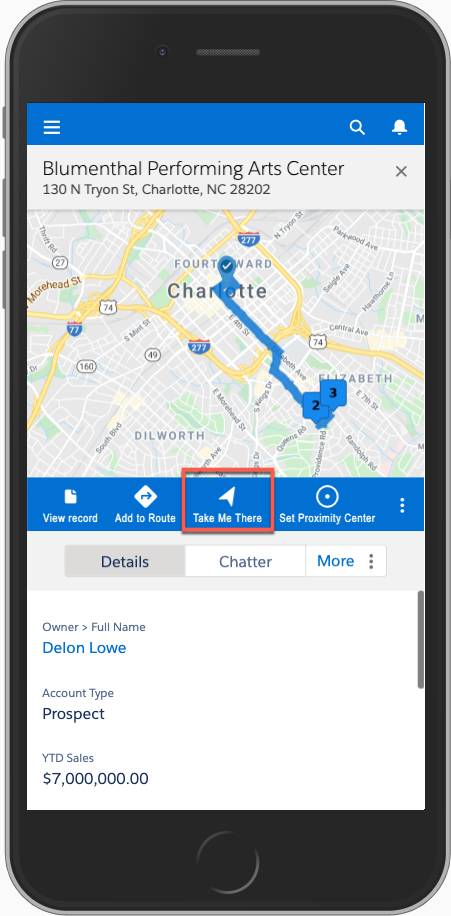
Turn-by-Turn Navigation — Integration with preferred mapping apps for driving directions
Dynamic Rerouting — Modify routes on-the-fly when appointments cancel or schedules change
Map My Schedule — Visualize weekly appointments and identify geographic gaps
Territory Planning
Sales managers can visualize and manage territory assignments directly from the map interface:
Territory Visualization — See account distribution across territories on the map
Real-Time Reassignment — Drag accounts between territories and reassign reps
Resource Allocation — Identify high-opportunity areas and allocate resources accordingly
Balance Analysis — Ensure equitable territory distribution based on opportunity value
Mobile Features
According to Salesforce Help, Salesforce Maps mobile capabilities include:
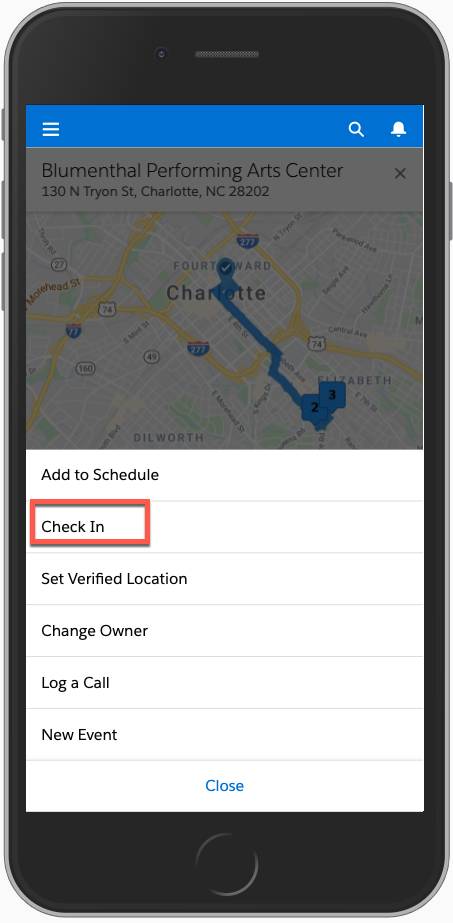
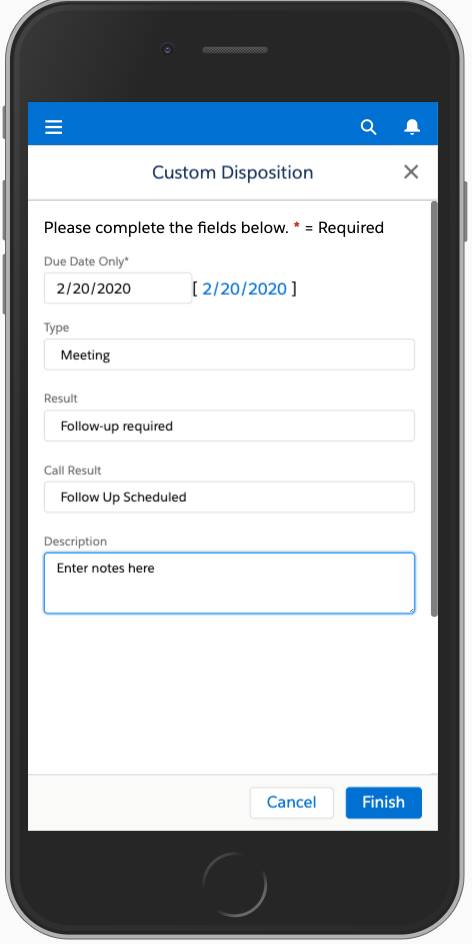
Check In/Out — Log visits with timestamps, notes, and custom dispositions automatically
Click2Create® — Create leads or accounts directly from point-of-interest searches while prospecting
POI Search — Find nearby businesses and cross-reference against existing Salesforce records
Marker Layers — Plot accounts, leads, and opportunities within a specified radius
Activity Logging — Capture meeting notes and create follow-up tasks from the field
Salesforce Maps Check-In: Log visits with one tapDisposition Notes: Capture meeting outcomesTake Me There: Turn-by-turn navigation
Pricing
Salesforce Maps is available in two tiers:
Salesforce Maps — $75/user/month (core mapping and routing)
For Field Service Mobile and Mobile App Plus, custom objects from outside the standard data model hierarchy can be added to a briefcase so workers can access the data offline. This is particularly useful for:
Server-Side Logic Doesn't Run Offline: Apex triggers, validation rules, workflow rules, and flows only execute when data syncs to the server. Never rely on server-side logic for offline data validation or business rules.
Related List Counts Are Static:getRelatedListRecords and getRelatedListCount wire adapters won't reflect records created or deleted while offline. The counts update only after sync.
Priming Failures Are Silent: If priming fails due to exceeding 1,000 page references, users may not realize their data is incomplete. Always validate briefcase configurations thoroughly.
Gotcha
Impact
Mitigation
Large briefcases slow sync
Poor user experience, battery drain
Limit records, use targeted filters
Ghost records accumulate
Stale data, storage issues
Call cleanResyncGhosts regularly
Unsupported base components
UI errors offline
Test all components in airplane mode
Required fields missing
Sync failures on server
Client-side validation for required fields
11
Frequently Asked Questions
Salesforce Mobile Offline is a feature that allows mobile users to access, create, edit, and delete Salesforce records even without an internet connection. Data is stored locally on the device using encrypted storage (256-bit AES via SQLCipher) and automatically syncs when connectivity is restored. It's available through Mobile App Plus or Field Service Mobile.
Briefcase Builder is an admin tool that lets you define which records should be downloaded to mobile devices for offline access. You can create filter rules, set record limits per object (up to 100,000), use dynamic user context ($User variables), and configure related record priming. It's accessible via Setup → Mobile Apps → Salesforce → Offline → Briefcase Builder.
Briefcase Builder supports up to 100,000 records per object, though Salesforce recommends keeping it under 500 records per object for optimal performance. Related lists are limited to 50 records per list, and the priming hierarchy cannot exceed 1,000 page references. For Field Service, recommend 100 or fewer parent records with 10 or fewer child records each.
Salesforce Mobile Offline supports multiple merge modes: MERGE_ACCEPT_YOURS (client changes overwrite server for modified fields, unchanged fields preserve server values), and MERGE_FAIL_IF_CONFLICT (operation fails if both client and server changed the same field). Changes made offline are queued as drafts and synced automatically when online. Users can view and manage conflicts from the Pending Changes page.
Mobile App Plus is a paid add-on that includes three features: Mobile Offline access for working without connectivity, Mobile App Management (MAM) for enhanced security with native application management, and custom branding to publish to Apple/Google app stores. The standard Salesforce Mobile App is included free with every license but has limited offline capabilities (basic caching of recently viewed records).
Mobile Publisher creates branded mobile apps from Experience Cloud sites for external users (customers, partners). It wraps your community/portal as a native mobile app with custom branding.
Mobile App Plus enhances the Salesforce Mobile App with offline capabilities (Briefcase Builder), MAM security, and branding for internal employees.
They are separate products serving different purposes and were not renamed—they coexist in the Salesforce mobile ecosystem.
The following wire adapters are offline-enabled:
@salesforce/graphql — Recommended for offline (single query, multiple objects)
getRecord / getRecords — Get record data by ID
getRelatedListRecords — Fetch related list records
getRelatedListCount — Get count of related records
No. Apex code runs exclusively on Salesforce servers and cannot execute offline. This includes:
Apex triggers (insert, update, delete)
Validation rules
Workflow rules and Process Builder
Flows (except client-side screen flows)
@wire Apex methods and imperative Apex calls
All server-side logic executes only when the device syncs back online. Design your offline experience to handle client-side validation and expect server-side rules to run during sync.
When sync fails, records remain as drafts in the pending changes queue. Common failure reasons include:
Validation rule failures — Server-side rules reject the data
Required field missing — Fields required on server weren't populated
Trigger exceptions — Apex trigger throws an error
Conflict detection — Same field changed by another user (with MERGE_FAIL_IF_CONFLICT)
Users can view failed records in the Pending Changes screen, edit them to fix issues, and retry sync. Records can also be discarded if needed.
12
Abbreviations & Glossary
Abbreviations & Glossary
Reference guide for technical terms and abbreviations used throughout this article.
AES-Advanced Encryption Standard (256-bit encryption used by SmartStore)