Salesforce Mobile Offline
Master offline capabilities with Briefcase Builder, LWC Offline, Mobile App Plus, data priming, synchronization, and conflict resolution
This article has been refreshed with the latest information, updated product guidance, and current best practices. Originally published January 2026.
What's New in This Update (August 2026)
- Added: Salesforce Maps mobile transition guidance—Live Tracking Mobile retires August 31, 2026, and mobile access moves into the core Salesforce app
- Added: Spring '26 Field Service Native GIS Mapping with offline-capable geospatial layers
- Added: Summer '26 mobile features—actionable push notifications (GA), customizable mobile Home (Beta), and Agentforce Voice in the Mobile SDK
- Updated: GraphQL module guidance—lightning/graphql (v2) for new online development, while offline still uses lightning/uiGraphQLApi
- Updated: Briefcase limits table with per-user clarification
- Updated: Developer tooling coverage, current through Mobile Extensions for VS Code 0.5.0
1 What is Salesforce Mobile Offline?
Before diving in, here are essential terms used throughout this guide:
- Priming (Data Priming) – The process of preloading/downloading Salesforce records to a mobile device while online, so they're available for offline use later.
- Briefcase – A container or configuration that defines which records should be downloaded to the device for offline access. Admins create briefcases using Briefcase Builder.
- Draft Records – Records created or modified offline that are stored locally and queued for synchronization when connectivity is restored.
- Sync (Synchronization) – The bidirectional process of uploading local changes to Salesforce and downloading server updates to the device.
- SmartStore – The encrypted SQLite database on the mobile device where offline records are securely stored using 256-bit AES encryption.
- Wire Adapter – LWC mechanism that connects components to Salesforce data. Offline-enabled wire adapters work without network connectivity.
- LWC Offline – Lightning Web Components built to function without an internet connection using offline-capable wire adapters.
According to the official Salesforce documentation, Mobile Offline is a feature that transforms how field workers, sales representatives, and service technicians interact with Salesforce data in areas with limited or no network connectivity.
Core Capabilities
With Salesforce's LWC offline capabilities, you can:
- Access data locally: View records stored on your device even without internet
- Create new records: Add accounts, contacts, opportunities, and custom objects offline
- Edit existing records: Modify field values that automatically queue for synchronization
- Delete records: Remove records that sync deletion to the server when online
- Automatic sync: All changes sync seamlessly when connectivity is restored
How Offline Access Works
2 Mobile App Plus vs Standard Salesforce Mobile App
Understanding the difference between the standard Salesforce Mobile App and Salesforce Mobile App Plus is crucial for planning your offline strategy.
Standard Mobile App
- Included free with every Salesforce license
- Basic offline caching of recently viewed records
- Limited offline editing capabilities
- Uses standard Salesforce Mobile branding
- Theme customization via standard settings
Mobile App Plus (Add-on)
- Full Mobile Offline with Briefcase Builder
- Mobile App Management (MAM) security
- Custom branding and white-labeling
- Publish to Apple/Google app stores
- LWC-only architecture for performance


Mobile App Plus Features
According to Salesforce's official announcement, Mobile App Plus includes three core capabilities:
| Feature | Description | Use Case |
|---|---|---|
| Mobile Offline | Access Salesforce data with poor or no network connectivity using Briefcase Builder for data configuration | Field technicians, remote sales, warehouse workers |
| Mobile App Management (MAM) | Enhanced security with native mobile application management for additional security requirements | Financial services, healthcare, regulated industries |
| Custom Branding | Add company branding to the Salesforce Mobile App and publish to Apple and Google Play stores | Enterprise branding, customer-facing apps |
Mobile Publisher vs Mobile App Plus
A common source of confusion is the relationship between Mobile Publisher and Mobile App Plus. These are different products serving different purposes:
Mobile Publisher
- Creates branded apps from Experience Cloud sites
- Wraps Salesforce Experience as native mobile app
- Custom branding, splash screens, icons
- Publish to Apple App Store/Google Play
- Push notifications, barcode scanning
- Designed for external users/customers
Mobile App Plus
- Enhances Salesforce Mobile App
- Full offline access with Briefcase Builder
- Mobile App Management (MAM) security
- Custom branding and white-labeling
- LWC Offline architecture
- Designed for internal users/employees
| Feature | Mobile Publisher | Mobile App Plus |
|---|---|---|
| Primary Purpose | Branded apps for Experience Cloud sites | Enhanced Salesforce Mobile App |
| Target Users | External (customers, partners) | Internal (employees, field workers) |
| Offline Capabilities | Limited (Experience Cloud caching) | Full offline with Briefcase Builder |
| Data Source | Experience Cloud sites | Salesforce CRM data |
| App Store Publishing | Yes | Yes |
| MAM Security | No | Yes |
Licensing Considerations
The basic Salesforce Mobile App is included with every Salesforce license. However, Mobile App Plus is a separate add-on product. Contact Salesforce sales for specific pricing as it varies based on your existing licensing and user count.
3 Briefcase Builder Deep Dive
Briefcase Builder is the administrative tool that lets you define which records should be downloaded to mobile devices for offline access. It's the foundation of Salesforce's offline data strategy.
Briefcase Builder Workflow
What is a Briefcase?
A briefcase is a collection of filter rules that determine which records are primed (downloaded) to a user's device. Think of it as a personalized subset of your Salesforce data that travels with each mobile user.
Creating a Briefcase
According to the Salesforce Help documentation, follow these steps:
- Navigate to Setup — Go to Setup → Mobile Apps → Salesforce → Offline → Briefcase Builder
- Create New Briefcase — Click "New Briefcase" and provide a descriptive name
- Add Objects — Select standard or custom objects to include in the briefcase
- Define Filter Rules — Create conditions to limit which records are downloaded
- Assign to Users — Associate the briefcase with specific users or permission sets
Filter Rules and User Context
One of the most powerful features is the ability to filter records by User ID using the $User context variable:
// Example filter: Records owned by current user
{
    "object": "Account",
    "filterLogic": "OwnerId = $User.Id",
    "recordLimit": 500
}

// Example: Accounts in user's territory
{
    "object": "Account",
    "filterLogic": "Territory2Id IN ($User.UserTerritory2Association)",
    "recordLimit": 1000
}
Related Record Priming
According to Salesforce release notes, you can prime related records automatically:
| Parent Object | Related Objects | Priming Behavior |
|---|---|---|
| Account | Contacts, Opportunities, Cases | Automatically includes child records |
| Work Order | Service Appointments, Work Order Line Items | Follows Field Service data model hierarchy |
| Custom Objects | Lookup/Master-Detail relationships | Configurable via Briefcase Builder rules |
4 LWC Offline Development
According to the Mobile and Offline Developer Guide, building offline-capable Lightning Web Components requires understanding three technical pillars:
1. Data Priming
- Intelligently preload records before going offline
- Managed through Briefcase Builder
- Advanced data replication rules and filters
- Stores in durable, encrypted, on-device cache
- LWCs access data from local cache when disconnected
2. Offline Data Manipulation
- Create, edit, delete records while disconnected
- Changes recorded as "drafts" in organized queue
- Enhanced UI API operations work with queue
- No manual sync management required
- Automatic change tracking
3. Automatic Synchronization
- Queued changes sync when reconnected
- Handles operation sequencing automatically
- Built-in conflict resolution
- Maintains data integrity across devices
- Status feedback to users
Supported Wire Adapters
According to LWC documentation, these wire adapters work offline:
| Wire Adapter | Module | Offline Support |
|---|---|---|
getRecord |
lightning/uiRecordApi | Limited Support* |
getRecords |
lightning/uiRecordApi | Full Support |
graphql |
lightning/uiGraphQLApi | Full Support |
getRelatedListRecords |
lightning/uiRelatedListApi | Partial* |
getRelatedListCount |
lightning/uiRelatedListApi | Partial* |
getRecord by layout isn't supported offline—request specific fields instead. Additionally, getRelatedListRecords and getRelatedListCount won't reflect records created or deleted while offline, despite providing offline support functionality.GraphQL Wire Adapter for Offline
The GraphQL wire adapter is recommended for offline scenarios. According to Salesforce's official guidance, here's why:
| Aspect | getRecord / LDS Adapters | GraphQL Wire Adapter |
|---|---|---|
| Server Requests | Multiple round trips needed for complex data | Single request aggregates data across resources |
| Relationships | Requires chaining multiple wire adapters | Traverse relationships in one query |
| Filtering & Sorting | Limited filtering capabilities | Complex filtering, sorting, pagination built-in |
| Data Efficiency | May return extra fields | Query exact fields needed—lightweight payloads |
| Bandwidth Usage | Higher (redundant data) | Minimal (critical for constrained networks) |
| Create/Update/Delete | Full CUD support | Read-only (use LDS for mutations) |
| Known Record IDs | More efficient | Works but LDS is simpler |
- Use GraphQL — Complex queries, traversing relationships, filtering/sorting lists, minimizing data transfer for offline priming
- Use getRecord/LDS — Simple single-record retrieval with known IDs, creating/updating/deleting records
GraphQL Code Example
import { LightningElement, wire } from 'lwc';
import { gql, graphql } from 'lightning/uiGraphQLApi';

export default class OfflineAccountList extends LightningElement {
    @wire(graphql, {
        query: gql`
            query getAccounts {
                uiapi {
                    query {
                        Account(first: 10) {
                            edges {
                                node {
                                    Id
                                    Name { value }
                                    Phone { value }
                                }
                            }
                        }
                    }
                }
            }
        `
    })
    accounts;
}lightning/graphql module (GraphQL wire adapter v2) now supersedes lightning/uiGraphQLApi for new online development. Offline use cases, however, still require lightning/uiGraphQLApi—so the code above remains the correct approach for LWC Offline.Real-World Scenario: When GraphQL Shines
Consider a field technician's mobile app that needs to display:
- Service Appointments for today
- Related Work Orders with status
- Customer Account details
- Contact phone numbers
With LDS (Multiple Adapters)
getRecordfor Service AppointmentgetRecordfor Work OrdergetRecordfor AccountgetRelatedListRecordsfor Contacts- = 4+ server round trips
- = 4+ wire adapters to manage
With GraphQL (Single Query)
- One query traverses all relationships
- Filter by date, sort by time
- Request only needed fields
- = 1 server request
- = 1 wire adapter
- = Less data primed offline
Development Tools
Salesforce provides specialized tools for offline LWC development:
- Salesforce Mobile Extensions for VS Code (0.5.0): Provides enhanced diagnostics for offline compatibility
- ESLint Plugin for LWC Mobile: Static code analysis with mobile-specific rules (
npm install --save-dev @salesforce/eslint-plugin-lwc-mobile) - Offline App Developer Starter Kit: Available on GitHub
5 Data Priming & Synchronization
Understanding how data flows between Salesforce servers and mobile devices is essential for building reliable offline applications. According to Salesforce documentation, this process involves priming and synchronization.
What is Data Priming?
Data priming is the process of downloading selected records from Salesforce to the mobile device's local storage before the user goes offline. The device periodically syncs while still online, ensuring users have access to records if connectivity is lost.
Sync Down Process
According to the Mobile SDK documentation:
Sync Up Process (Draft Records)
When users make changes offline, those changes are recorded as drafts. According to Salesforce's sync up documentation:
- Local Change Detection — System identifies created, updated, or deleted records in local storage
- Queue Management — Changes are organized in a queue with proper sequencing
- Server Replication — When online, changes are applied to Salesforce server
- Confirmation & Cleanup — Successful syncs clear draft flags; failures remain queued
Ghost Records
According to the Offline Management documentation, "ghost records" are local records that correspond to server records that have been deleted. The sync down payload doesn't reflect server-side deletions, so these records remain in local storage until explicitly cleaned up.
cleanResyncGhosts methods after sync down to remove ghost records from local storage. This maintains data consistency between the device and server.6 Conflict Resolution
When multiple users can collaborate offline, conflicts are inevitable. According to Salesforce's conflict detection documentation, the platform provides built-in mechanisms to handle these scenarios.
Conflict Detection Architecture
The Mobile SDK supports conflict detection with any save operation, regardless of whether the device is returning from an offline state. To enable conflict detection, you specify a secondary cache containing the original values fetched from the server.
Three Data States
Conflict detection compares three versions of the same record:
Merge Modes
| Merge Mode | Behavior | Use Case |
|---|---|---|
OVERWRITE |
Blindly writes all local values to server without comparing | Simple scenarios, single-user apps |
MERGE_ACCEPT_YOURS |
Local changes win for modified fields; unchanged fields preserve server values | Mobile-first workflows where field users have authority |
MERGE_FAIL_IF_CONFLICT |
Fails if both client and server changed the same field | Critical data requiring manual review |
MERGE_FAIL_IF_CHANGED |
Fails if any field was changed on the server | Maximum safety, no server changes allowed |
Visual: How Merge Modes Work
Consider a scenario where Client changes fields A & B and Server changes fields B & C:
Legend: Green = Changed | Red = Conflict (both changed)
Results by Merge Mode
OVERWRITE
- A: Value 1-A (yours)
- B: Value 2-B (yours)
- C: Value 3 (yours)
MERGE_ACCEPT_YOURS
- A: Value 1-A (yours)
- B: Value 2-B (yours wins)
- C: Value 3-C (theirs kept)
MERGE_FAIL_IF_CONFLICT
- Field B: Both changed!
- Conflict detected
- Manual resolution needed
User Experience for Conflicts
According to Salesforce's offline editing documentation, users can view and manage conflicts from the Pending Changes page in the mobile app:
- The app automatically syncs pending changes when online
- Users are warned if there are conflicts that need resolution
- Failed syncs remain in the list with a notation indicating the failure reason
- Users can tap any record in the list to edit further or, for locally deleted records, to undelete
7 Security & Encryption
Offline data security is paramount, especially when sensitive customer information is stored on mobile devices. According to Salesforce's local data protection documentation, multiple layers of encryption protect offline data.
SmartStore Encryption
According to the SmartStore documentation, SmartStore is built on SQLite and uses SQLCipher to encrypt customer data:
| Encryption Layer | Technology | Key Size |
|---|---|---|
| Database Encryption | SQLCipher | 256-bit AES |
| Key Storage (iOS) | iOS Keychain | 256-bit AES |
| Master Key Protection | 256-bit ECC | Equivalent to 3072-bit RSA |
| Encryption Mode | AES-GCM (since SDK 9.2) | 256-bit |
SQLCipher Support
Starting in Mobile SDK 13.0, SmartStore supports:
- SQLCipher Commercial: Standard encryption for commercial applications
- SQLCipher Enterprise: Enhanced security features
- SQLCipher Enterprise FIPS: FIPS 140-2 validated encryption for government/regulated industries
iOS Key Storage Architecture
According to Salesforce's iOS security documentation:
Mobile App Management (MAM)
For organizations with additional security requirements, Mobile App Plus includes MAM capabilities:
- App-level security: Encryption at the application level
- Remote wipe: Ability to remotely erase app data
- Compliance controls: Enforce security policies on managed devices
- Audit logging: Track app usage and data access
8 Governor Limits & Constraints
Understanding the limits and considerations for Salesforce Mobile Offline is crucial for successful implementations.
Briefcase Builder Limits
| Limit Type | Maximum Value | Notes |
|---|---|---|
| Active Briefcases per Org | 5 | Total active briefcases allowed |
| Top-Level Object Rules per Briefcase | 10 | Primary objects in briefcase |
| Total Object Rules per Briefcase | 20 | Including top-level + related rules |
| Levels of Hierarchy (Related Objects) | 6 | Depth of related object rules |
| Records per Object | 50,000 | Default is 500 records per object |
| Total Records Across All Briefcases | 50,000 | Per user, across active briefcases in an org |
| Filters per Object | 10 | Use indexed fields for performance |
| Custom Metadata Type Rules | 10 | Per briefcase |
| GraphQL Query Size (guidance) | 32 KB | Performance guidance threshold flagged by Mobile Extensions tooling; optimize field selection |
Sysmodstamp for optimal performance. Apply at least 1 filter per object.Unsupported Objects
The following objects are not supported in Briefcase Builder:
- ContentDocument, ContentVersion
- KnowledgeArticle, KnowledgeArticleVersion
- External objects
- Setup objects
Supported: Standard and custom objects that are customizable and layoutable. Person accounts are supported with fields available as filters on the Account object.
Field Service Mobile Specific Limits
According to Field Service Mobile App Limitations:
| Limit | Value | Notes |
|---|---|---|
| Records per Related List | 50 | List indicator shows "(50+)" if more exist |
| Priming Hierarchy Depth | 1,000 page references | Priming fails if exceeded |
| Recommended Parent Records | 100 | Recommended practice per Salesforce documentation (e.g., Work Orders, Accounts) |
| Child Records per Parent | 10 | Recommended practice (e.g., Service Appointments per Work Order) |
LWC Offline Limitations
According to Salesforce's offline considerations, LWC Offline has these constraints:
- Not Full Salesforce: LWC Offline is designed for offline functionality but isn't the complete Salesforce service
- Missing Capabilities: Some standard features aren't available offline
- Reduced Performance: Complex operations may be slower on-device
- No Server-Side Logic: Apex triggers, validation rules, and workflows don't execute offline
- Base Components: Not all base Lightning components are optimized for offline mobile use
9 Salesforce Mobile Apps Ecosystem
Salesforce offers multiple mobile apps tailored for different use cases and industries. Understanding which app fits your needs is essential for successful mobile offline implementations.
Official Salesforce Mobile Apps
| App | Primary Use Case | Offline Support |
|---|---|---|
| Salesforce Mobile App | General CRM access for Sales Cloud, Service Cloud, and custom apps | Via Mobile App Plus add-on |
| Field Service Mobile | Field technicians, on-site service workers, dispatchers | Built-in offline-first design |
| Consumer Goods Cloud | Retail execution, store visits, merchandising, inventory audits | Built-in offline capabilities |
| Salesforce Maps | Route optimization, territory management, location intelligence | Offline map caching; mobile access moving into the core Salesforce app |
Salesforce Mobile App
The Salesforce Mobile App is the general-purpose mobile application for accessing Salesforce CRM on iOS and Android devices. It provides mobile access to Sales Cloud, Service Cloud, and custom Lightning applications.
Key Features
- Universal CRM Access — View and manage leads, contacts, accounts, opportunities, cases, and custom objects
- Lightning Experience — Native mobile experience with Lightning components
- Push Notifications — Real-time alerts for approvals, Chatter mentions, and custom events
- Einstein Analytics — Access dashboards and reports on the go
- Quick Actions — Create records and log activities with minimal taps
Mobile App Plus for Offline
According to Salesforce documentation, Mobile App Plus is an add-on license that enables offline capabilities for the standard Salesforce Mobile App. With Mobile App Plus:
- Users can access primed data when offline using Briefcase Builder
- Create, edit, and view records without internet connection
- Changes sync automatically when connectivity returns
- Custom offline-enabled LWC components work seamlessly
Field Service Mobile App
The Field Service Mobile App is purpose-built for mobile workers who spend most of their time away from the office—technicians, installers, inspectors, and service professionals who need reliable access to job information regardless of connectivity.
Who It's For
- Field service technicians and installers
- On-site maintenance workers
- Dispatchers and service coordinators
- Equipment inspectors and auditors
Key Features
- Offline-First Architecture — Designed from the ground up to work without connectivity
- Schedule-Centric UI — Calendar view showing daily/weekly service appointments
- Work Order Management — Complete view of work orders, line items, and service history
- Asset & Inventory Tracking — Access asset records and manage parts consumption
- Signature Capture — Collect customer signatures directly on device
- Time & Travel Tracking — Log time entries and travel to appointments
- Knowledge Integration — Access articles and troubleshooting guides on-site
Offline Priming Approach
According to offline considerations documentation, Field Service Mobile uses a hierarchical priming approach:
- Service Resource Profile — System identifies the logged-in user's service resource record
- Assigned Work — Downloads Service Appointments assigned to the resource
- Parent Work Orders — Primes parent Work Order records for each appointment
- Related Records — Downloads Work Order Line Items, Assets, and configured custom objects
Consumer Goods Cloud Mobile App
The Consumer Goods Cloud Offline Mobile App enables field representatives to execute retail visits and record store data even in areas with poor or no internet connectivity.
Who It's For
- Retail execution field representatives
- Merchandising specialists
- Trade promotion managers
- Store auditors and inventory checkers
Key Features
According to Trailhead documentation:
- Full Offline Support — High-scalable background synchronization with automatic upload when online
- Visit Calendar — Weekly schedule review with drag-and-drop rescheduling
- Barcode Scanning — Scan products for inventory checks and assessments
- Process-Driven Interface — Single access point for all visit activities and tasks
- Map Integration — Current traffic visibility and turn-by-turn navigation to stores
- Photo Capture — Document shelf conditions, displays, and compliance
- Assessment Tasks — Execute common assessment task types fully offline
Salesforce Maps
Salesforce Maps is a location intelligence platform that helps field sales teams optimize routes, manage territories, and visualize customer data geographically. Its mobile capabilities are delivered through the core Salesforce Mobile App as part of the Maps Mobile transition, while desktop Maps continues to provide the full location intelligence experience.
Who It's For
- Field sales representatives
- Territory managers and sales directors
- Route-based delivery teams
- Outside sales organizations
Location Intelligence
Salesforce Maps transforms how teams visualize customer data by plotting accounts, opportunities, and any Salesforce object on interactive maps. According to Trailhead, users can filter and prioritize accounts based on:
- Einstein scores and revenue potential
- Last contact dates and activity history
- Geographic proximity to current location
- Custom fields and business criteria
Route Optimization
Route optimization is a core strength of Salesforce Maps, helping field teams reduce travel time and maximize customer-facing hours:
- Smart Routing — Create optimized multi-stop routes in minutes, saving hours of planning time weekly
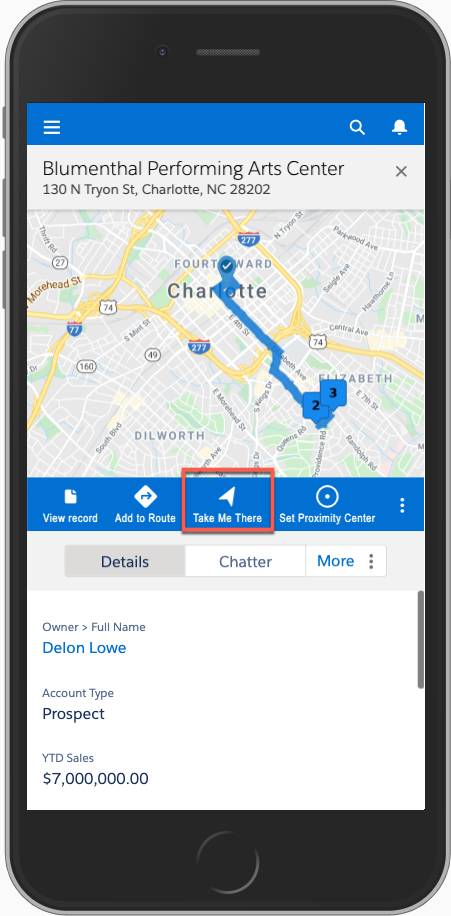
- Turn-by-Turn Navigation — Integration with preferred mapping apps for driving directions
- Dynamic Rerouting — Modify routes on-the-fly when appointments cancel or schedules change
- Map My Schedule — Visualize weekly appointments and identify geographic gaps
Territory Planning
In the desktop experience, sales managers can visualize and manage territory assignments directly from the map interface:
- Territory Visualization — See account distribution across territories on the map
- Real-Time Reassignment — Drag accounts between territories and reassign reps
- Resource Allocation — Identify high-opportunity areas and allocate resources accordingly
- Balance Analysis — Ensure equitable territory distribution based on opportunity value
Mobile Features
According to Salesforce Help, these Salesforce Maps mobile capabilities carry forward into the Maps Mobile experience in the core Salesforce app:
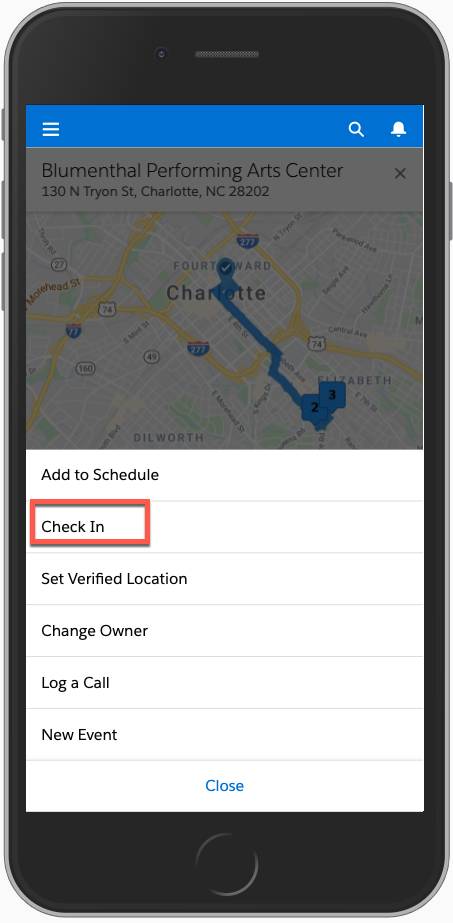
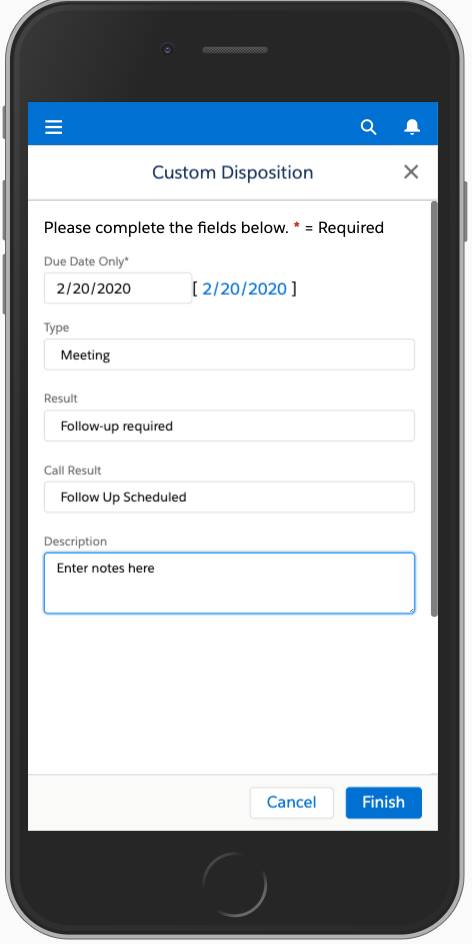
- Check In/Out — Log visits with timestamps, notes, and custom dispositions automatically
- Click2Create® — Create leads or accounts directly from point-of-interest searches while prospecting
- POI Search — Find nearby businesses and cross-reference against existing Salesforce records
- Marker Layers — Plot accounts, leads, and opportunities within a specified radius
- Activity Logging — Capture meeting notes and create follow-up tasks from the field
Adding Custom Objects via Briefcase
For Field Service Mobile and Mobile App Plus, custom objects from outside the standard data model hierarchy can be added to a briefcase so workers can access the data offline. This is particularly useful for:
- Product catalogs and pricing information
- Custom configuration data
- Reference materials and documentation
10 Best Practices & Gotchas
Based on Salesforce Trailhead recommendations and official documentation, here are essential practices for successful offline implementations.
Do's - Best Practices
Briefcase Configuration
- Start with minimum required objects and records
- Use $User context for personalized data
- Test with realistic data volumes
- Monitor sync times and adjust limits
LWC Development
- Use Salesforce Mobile Extensions for VS Code
- Keep GraphQL queries under 32 KB
- Test in airplane mode during development
- Implement proper error handling for sync failures
User Experience
- Show clear offline/online indicators
- Provide pending changes visibility
- Train users on manual sync procedures
- Design for worst-case connectivity scenarios
Don'ts - Common Gotchas
getRelatedListRecords and getRelatedListCount wire adapters won't reflect records created or deleted while offline. The counts update only after sync.| Gotcha | Impact | Mitigation |
|---|---|---|
| Large briefcases slow sync | Poor user experience, battery drain | Limit records, use targeted filters |
| Ghost records accumulate | Stale data, storage issues | Call cleanResyncGhosts regularly |
| Unsupported base components | UI errors offline | Test all components in airplane mode |
| Required fields missing | Sync failures on server | Client-side validation for required fields |
11 Frequently Asked Questions
Salesforce Mobile Offline is a feature that allows mobile users to access, create, edit, and delete Salesforce records even without an internet connection. Data is stored locally on the device using encrypted storage (256-bit AES via SQLCipher) and automatically syncs when connectivity is restored. It's available through Mobile App Plus or Field Service Mobile.
Briefcase Builder is an admin tool that lets you define which records should be downloaded to mobile devices for offline access. You can create filter rules, set record limits per object (up to 50,000), use dynamic user context ($User variables), and configure related record priming. It's accessible via Setup → Mobile Apps → Salesforce → Offline → Briefcase Builder.
Briefcase Builder supports up to 50,000 records per object (default is 500). You can have up to 5 active briefcases per org, 10 top-level object rules per briefcase, 20 total object rules, and 6 levels of hierarchy depth. Total records across active briefcases in an org are capped at 50,000 per user. Related lists in Field Service Mobile are limited to 50 records per list, and the priming hierarchy can't exceed 1,000 page references.
Salesforce Mobile Offline supports multiple merge modes: MERGE_ACCEPT_YOURS (client changes overwrite server for modified fields, unchanged fields preserve server values), and MERGE_FAIL_IF_CONFLICT (operation fails if both client and server changed the same field). Changes made offline are queued as drafts and synced automatically when online. Users can view and manage conflicts from the Pending Changes page.
Mobile App Plus is a paid add-on that includes three features: Mobile Offline access for working without connectivity, Mobile App Management (MAM) for enhanced security with native application management, and custom branding to publish to Apple/Google app stores. The standard Salesforce Mobile App is included free with every license but has limited offline capabilities (basic caching of recently viewed records).
Mobile Publisher creates branded mobile apps from Experience Cloud sites for external users (customers, partners). It wraps your community/portal as a native mobile app with custom branding.
Mobile App Plus enhances the Salesforce Mobile App with offline capabilities (Briefcase Builder), MAM security, and branding for internal employees—its branding capability is built on the Mobile Publisher engine.
They are separate products serving different purposes and coexist in the Salesforce mobile ecosystem.
The following wire adapters are offline-enabled:
@salesforce/graphql— Recommended for offline (single query, multiple objects)getRecord/getRecords— Get record data by IDgetRelatedListRecords— Fetch related list recordsgetRelatedListCount— Get count of related recordsgetPicklistValues/getPicklistValuesByRecordType— Picklist metadatagetObjectInfo/getObjectInfos— Object metadata
Note: getRecord by layout isn't supported offline. getListUi and getRecordUi are deprecated with limited support, and Apex @wire methods and imperative Apex calls don't work offline.
No. Apex code runs exclusively on Salesforce servers and cannot execute offline. This includes:
- Apex triggers (insert, update, delete)
- Validation rules
- Workflow rules and Process Builder
- Flows (except client-side screen flows)
- @wire Apex methods and imperative Apex calls
All server-side logic executes only when the device syncs back online. Design your offline experience to handle client-side validation and expect server-side rules to run during sync.
When sync fails, records remain as drafts in the pending changes queue. Common failure reasons include:
- Validation rule failures — Server-side rules reject the data
- Required field missing — Fields required on server weren't populated
- Trigger exceptions — Apex trigger throws an error
- Conflict detection — Same field changed by another user (with MERGE_FAIL_IF_CONFLICT)
Users can view failed records in the Pending Changes screen, edit them to fix issues, and retry sync. Records can also be discarded if needed.
Salesforce Maps Live Tracking Mobile is scheduled for retirement on August 31, 2026, and the standalone Salesforce Maps mobile app leaves the app stores on the same date. Mobile access to Maps features moves into the core Salesforce mobile app through the Maps Mobile navigation item, while the desktop Salesforce Maps experience continues. Review field workflows and plan the transition to the core Salesforce app ahead of the retirement date.
12 Abbreviations & Glossary
Abbreviations & Glossary
Reference guide for technical terms and abbreviations used throughout this article.
Related Reading
Continue your Salesforce mobile and security learning journey with these related guides:
- Salesforce Security Ultimate Guide — Comprehensive guide covering profiles, permission sets, sharing rules, and security best practices
- 7 Ways to Secure Experience Cloud — Essential security measures for customer-facing Salesforce portals
- Solution vs Technical Architect — Understanding the key differences between Salesforce architect certifications
- Apex Design Patterns — Best practices for scalable and maintainable Apex code development
