10 Claude Code Tips from the Creator Boris Cherny
How the Anthropic team actually uses Claude Code — straight from the creator's thread, which had 8.5 million views in February 2026
01 Who is Boris Cherny?
Boris Cherny created Claude Code as a side project in September 2024 while working at Anthropic. Before joining Anthropic, he spent nearly seven years at Meta (Facebook) where he rose from IC4 to Principal Software Engineer (IC8), leading teams of up to 30 engineers. He is also the author of O'Reilly's Programming TypeScript.
When I created Claude Code as a side project back in September 2024, I had no idea it would grow to be what it is today.
On January 31, 2026, Boris shared a thread on X (formerly Twitter) revealing how his team at Anthropic actually uses Claude Code. At the time of writing in February 2026, the thread had 8.5 million views, 49,000 likes, and 6,400 reposts. According to Anthropic's official announcement, Claude Code reached $1 billion in run-rate revenue just six months after becoming publicly available.
What makes these tips uniquely valuable is that they come directly from the team that builds Claude Code. Boris noted that every team member uses the tool differently, and he encouraged developers to experiment to find their own workflow. Here are all 10 tips, enriched with context and practical examples.
02 Tip 1: Do More in Parallel
Spin up 3–5 git worktrees, each running its own Claude session in parallel
This is the single biggest productivity unlock according to the Claude Code team. Boris personally uses multiple git checkouts, but most of the team prefers worktrees.
Git worktrees let you create multiple working directories from the same repository. Each worktree gets its own branch and file state while sharing the same Git history. The key insight is running a separate Claude Code session in each worktree simultaneously.
How to Set Up Parallel Worktrees
# Create a worktree for a specific task
$ git worktree add -b my-worktree .claude/worktrees/my-worktree origin/main

# Navigate to the worktree and start Claude
$ cd .claude/worktrees/my-worktree && claude
According to the Claude Code common workflows documentation, you can also use the --worktree flag directly when launching Claude Code. Each worktree has isolated files while sharing Git history, so parallel sessions do not overwrite each other's files (merging the branches can still produce conflicts).
Why This Works So Well
- True parallelism: Work on a bug fix, a feature, and a refactor simultaneously
- Fewer file clashes: Each worktree has its own working directory
- Independent context: Each Claude session has its own conversation history
- Multiplied throughput: Boris runs 5 terminal sessions plus 5–10 web sessions on claude.ai/code
Parallel Sessions in the Claude Desktop App
You can run parallel sessions without a terminal. On 9 November 2026 the Claude Code desktop documentation said: “In the Code tab, each conversation is a session: it has its own chat history and project folder, independent of any other session. The sidebar lists your sessions and lets you run several in parallel.” Click + New in the sidebar, or press Cmd+N on macOS or Ctrl+N on Windows, to start another one.
In a Git repository, turn on Worktree before you start a session to run it in its own Git worktree. The same page says that by default Worktree is off and Claude works in the project folder itself, and that worktrees are stored in <project-root>/.claude/worktrees/ by default, the folder used in the terminal example above.
03 Tip 2: Start Every Complex Task in Plan Mode
Pour your energy into the plan so Claude can 1-shot the implementation.
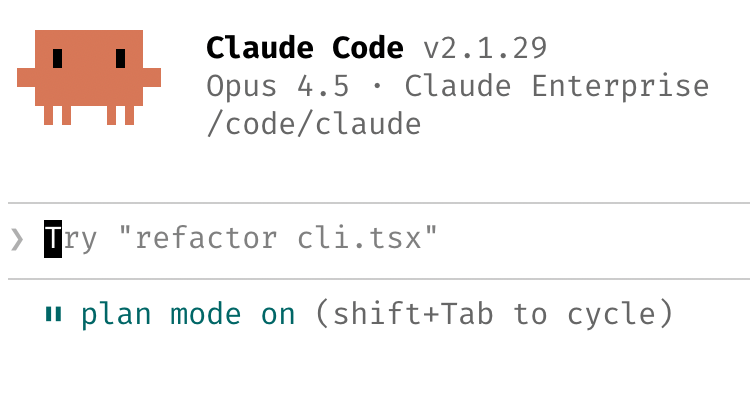
Plan mode (reached by cycling permission modes with Shift+Tab) tells Claude to use read-only operations — analyzing code, reading files, searching the codebase — to create a detailed implementation plan before writing a single line of code. The philosophy is simple: invest heavily in planning so Claude has the best chance of implementing it in one pass.
How the Team Uses Plan Mode
In the terminal, press Shift+Tab until the status bar shows plan mode on (in the desktop app, use the mode selector). Claude switches to read-only exploration.
Review Claude's plan, ask questions, request changes. Don't rush this step.
Once the plan is solid, approve it, switch to accept edits mode and let Claude implement.
The permission modes documentation says: “Switch permission modes with Shift+Tab in the CLI, the mode indicator in VS Code, or the mode selector in Desktop.” Plan mode is also shown in the video above.
One team member takes this further: they have one Claude write the plan, then spin up a second Claude session to review it as a staff engineer. Another team member follows a different pattern: the moment something goes sideways during implementation, they immediately return to plan mode to reassess rather than letting Claude wander.
04 Tip 3: Invest in Your CLAUDE.md
After every correction, end with: "Update your CLAUDE.md so you don't make that mistake again." Claude is eerily good at writing rules for itself.
CLAUDE.md is a persistent memory file that Claude Code reads at the start of every session. According to the Claude Code memory documentation, CLAUDE.md files can live in several locations. They are listed from broadest scope to most specific, all are loaded into context rather than overriding each other, and instructions closer to where you launched Claude are read last.
The Memory File Hierarchy
| Load order | File Location | Scope |
|---|---|---|
| 1 (Broadest) | Managed policy (an operating system path, for example /Library/Application Support/ClaudeCode/CLAUDE.md on macOS) | Organization-wide instructions |
| 2 | ~/.claude/CLAUDE.md | User-wide (all projects) |
| 3 | ./CLAUDE.md or ./.claude/CLAUDE.md | Project root (shared with team via git) |
| 4 (Most specific) | ./CLAUDE.local.md | Local preferences (gitignored) |
| Also | .claude/rules/*.md | Project rules scoped to file types or subdirectories |
| Also | ~/.claude/projects/<project>/memory/ | Auto memory (Claude writes for itself) |
Best Practices for CLAUDE.md
- Ruthlessly edit over time: Keep iterating. Remove outdated rules, consolidate duplicates, sharpen language.
- Check it into git: The Anthropic team's CLAUDE.md is a shared file that the whole team maintains. During code reviews, they tag
@.claudeon PRs to integrate learnings. - Let Claude write rules for itself: After correcting Claude, say "Update your CLAUDE.md so you don't repeat this." Claude is surprisingly good at creating precise rules from its own mistakes.
- Include build commands, style guides, and architecture decisions: Anything that saves context-setting time belongs here.
05 Tip 4: Create Custom Skills and Commit to Git
Skills (formerly called slash commands) extend Claude Code's capabilities with domain-specific workflows. According to the Claude Code skills documentation, they follow the open Agent Skills standard and can be shared across projects.
Team Tips for Skills
- If you do something more than once a day, turn it into a skill or command
- Build a
/techdebtslash command and run it at the end of every session to find and kill duplicated code - Commit skills to git so the whole team benefits from the same workflows
Where to Store Skills
| Location | Scope | Best For |
|---|---|---|
~/.claude/skills/<name>/SKILL.md | Personal (all projects) | Your personal workflow automation |
.claude/skills/<name>/SKILL.md | Project (shared via git) | Team-wide conventions and workflows |
.claude/commands/<name>.md | Project (legacy format) | Still supported, backwards compatible |
Skills support YAML frontmatter for controlling behavior: set user-invocable: true for slash command access, context: fork to run in a subagent, or specify allowed-tools to restrict what tools the skill can use. Boris's team has skills for everything from BigQuery analytics to code review to tech debt analysis.
/init to bootstrap a CLAUDE.md for new projects.06 Tip 5: Let Claude Fix Bugs Autonomously
Enable the Slack MCP, paste a Slack bug thread into Claude, and just say "fix"
The team uses MCP (Model Context Protocol) integrations to connect Claude directly to bug reports, CI logs, and error monitoring tools.
The Model Context Protocol (MCP) is an open standard that provides a standardized way for LLMs to communicate with external data sources and services. Claude Code natively supports MCP, and the Anthropic team leverages it heavily for bug fixing workflows.
Bug Fixing Workflows
The key pattern here is outcome-based prompting. Instead of telling Claude exactly what to change, describe the desired outcome. "Fix the failing CI tests" gives Claude the freedom to investigate, diagnose, and resolve the issue using its own judgment.
07 Tip 6: Level Up Your Prompting
Boris shared two powerful prompting strategies that his team uses daily. These go beyond basic instructions and treat Claude as a collaborative engineering partner.
a. Challenge Claude to Be Your Reviewer
Instead of always asking Claude to write code, flip the dynamic. Ask Claude to challenge you on your code, review your decisions, and verify your changes.
This turns Claude into a rigorous code reviewer that can catch edge cases and potential regressions, which helps you judge whether your changes are production-ready.
b. Iterate After Mediocre Results
When Claude's output is not quite right, don't start over. Build on what exists. Boris's team iterates on results rather than abandoning them, refining prompts with more specific constraints until the output meets their standards.
Example Prompting Patterns
| Pattern | Example Prompt | When to Use |
|---|---|---|
| Challenge | "Grill me on these changes" | Before PR submission |
| Verify | "Prove to me this works" | After implementation |
| Diff | "Diff behavior between main and this branch" | Feature validation |
| Outcome-based | "Fix the failing CI tests" | Bug fixing |
| Autonomous | "Go fix this Slack thread" | MCP-driven workflows |
08 Tip 7: Terminal & Environment Setup
The Claude Code team has strong opinions about terminal setup, and their recommendations come from running Claude Code all day, every day.
The Team Loves Ghostty
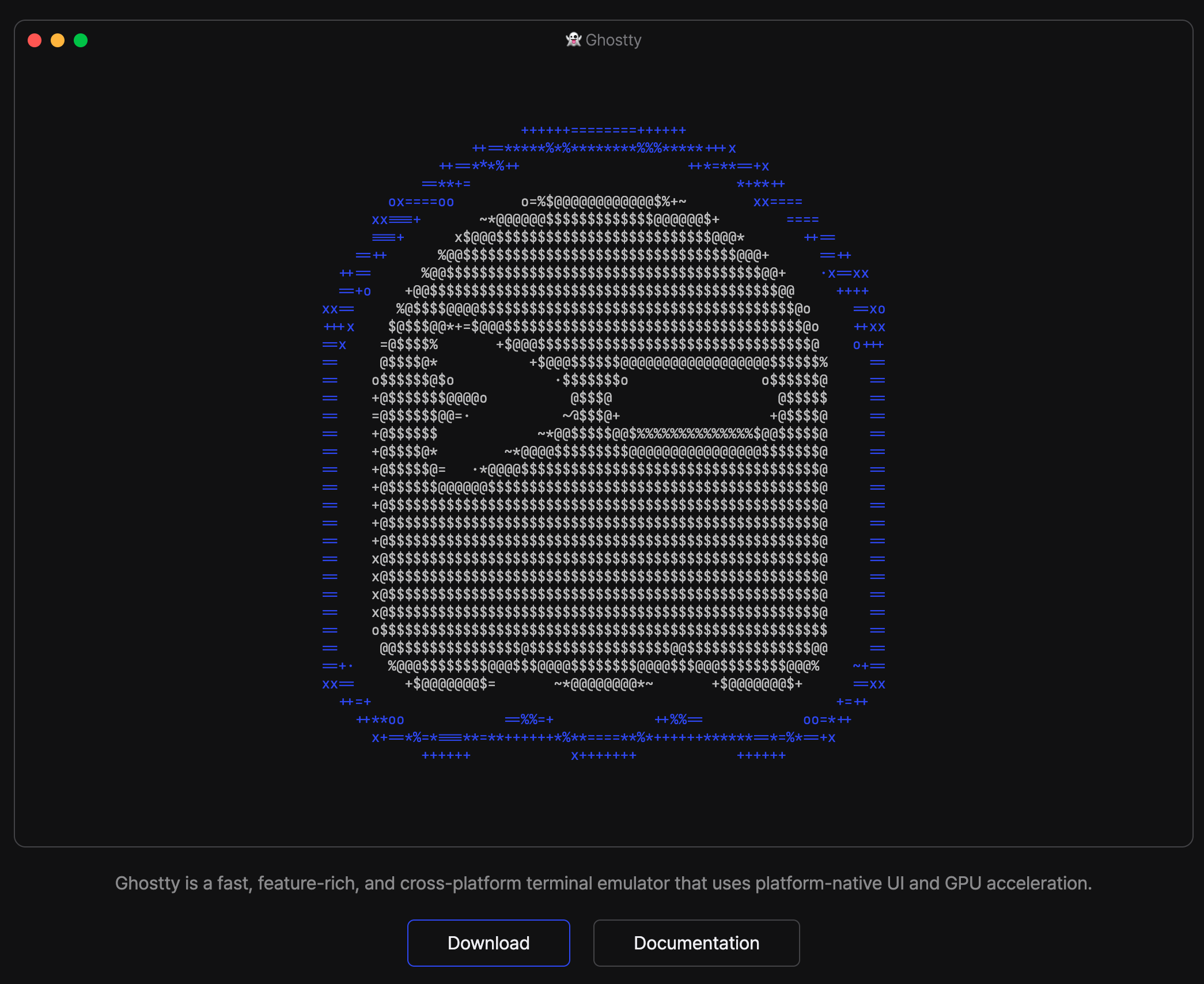
Multiple team members use Ghostty, a terminal emulator created by Mitchell Hashimoto (co-founder of HashiCorp). They specifically cited its synchronized rendering, 24-bit color support, and proper Unicode support as key advantages. Ghostty uses Metal rendering on macOS.
Customize Your Status Line
For managing multiple parallel Claude sessions, the team uses /statusline to customize the status bar at the bottom of the terminal. According to the statusline documentation, it can display context usage, cost tracking, current git branch, and model information.
This is especially useful when juggling 3–5 parallel worktree sessions. A quick glance at the status bar tells you which branch you're on and how much context each session has consumed.
Additional Environment Tips
- Voice dictation: Press
fntwice on macOS to activate dictation. Boris uses this to speak detailed prompts faster than typing. - Pre-allow safe commands: Use
/permissionsto pre-allow common commands (build, lint, test) instead of approving each one individually. - Post-tool hooks: Set up PostToolUse hooks to auto-format code after Claude writes it (e.g.,
bun run format || true).
09 Tip 8: Use Subagents
Subagents are specialized AI assistants that run in their own context window with custom system prompts. According to the Claude Code subagents documentation, they are one of the most powerful features for scaling your Claude Code usage.
Three Ways to Use Subagents
When you want Claude to throw more compute at a problem, just say "use subagents" and it will launch multiple parallel agents to explore, research, and solve different aspects simultaneously.
Individual research or exploration tasks can be sent to subagents, keeping your main agent's context window focused and uncluttered.
In his January 2026 thread, Boris said the team routes permission approval requests to Opus 4.5 via a hook, letting the AI judge whether a tool call should be approved. Opus 4.5 was the Opus model then; the model configuration documentation now lists Opus 5.5 as the default on Pro, Max, Ultra, Team, Enterprise and the Anthropic API.
Built-in Subagent Types
| Type | Model | Tools | Best For |
|---|---|---|---|
| Explore | Normally the main conversation's model (see note) | Read-only | Quick codebase searches |
| Plan | Inherited | Read-only | Research and planning |
| General-purpose | Inherited | All tools | Complex multi-step tasks |
On 9 November 2026 the subagents documentation described Explore as “A fast, read-only agent optimized for searching and analyzing codebases” and said Explore normally uses the main conversation's model. When the main conversation runs Fable, Explore's model depends on how you connect: with a Claude subscription, an Anthropic Console account or an LLM gateway it runs on the Opus model that the opus alias resolves to, and on Amazon Bedrock, Google Cloud's Agent Platform, Microsoft Foundry and similar providers it stays on the main conversation's model. To run exploration on a lower-cost model, define your own subagent named Explore with model: haiku.
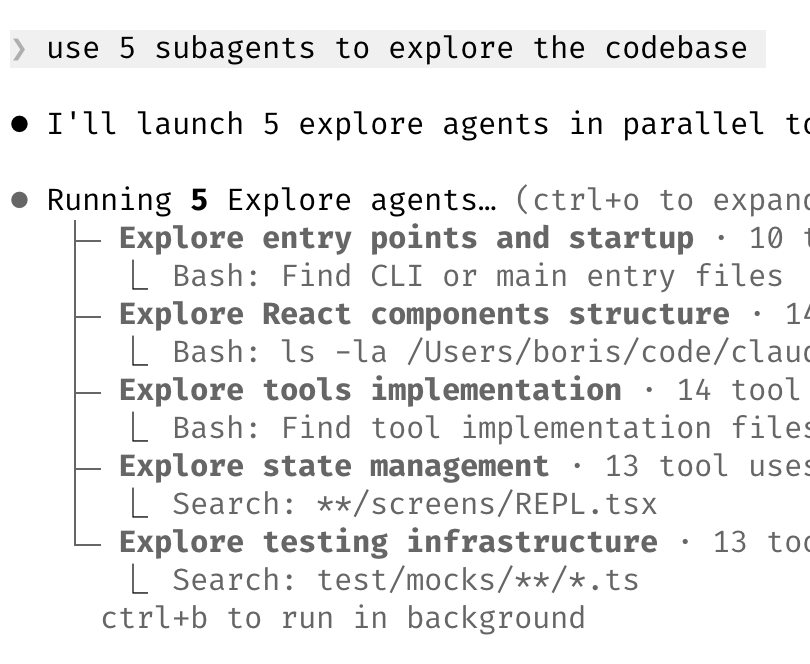
You can also define custom subagents in .claude/agents/ with YAML frontmatter specifying their model, tools, MCP server access, and even memory persistence. The team has custom agents like "code-simplifier" and "verify-app" for recurring tasks.
Ctrl+B to run a subagent in the background while you continue working in the main session. Use Ctrl+O to expand the subagent view and check progress.10 Tips 9 & 10: Data, Analytics & Learning
Tip 9: Use Claude for Data & Analytics
Boris's team has a BigQuery skill checked into their codebase. Everyone on the team uses it for analytics queries directly in Claude Code. Boris himself has not written a line of SQL for analytics since adopting this approach.
The pattern here is powerful: instead of switching to a separate analytics tool, stay in your development environment and let Claude write the query, run it, and interpret the results. This works with any CLI-based data tool — BigQuery, PostgreSQL, MySQL, or even curl-based API calls.
Tip 10: Learning with Claude
The Claude Code team also uses the tool as a learning accelerator. Here are their approaches:
- Enable "Explanatory" or "Learning" output style in
/configto have Claude explain the why behind every change it makes, not just the what - Have Claude generate visual HTML presentations explaining unfamiliar code, architectures, or concepts. Claude can create interactive diagrams and walkthroughs that are easier to understand than reading raw code.
11 Bonus: Community Tips
The thread also generated valuable tips from the community that Boris endorsed. Here are the highlights:
Chrome MCP for Web Validation
Garrett Kirschbaum shared that using Claude Code with the Chrome MCP to validate changes on the web has been a "huge unlock" for his team. Boris agreed, calling Chrome MCP a "game changer." This lets Claude interact with a real browser, verify UI changes, check for visual regressions, and validate that deployed features work as expected.
Auto-Evaluate Sessions with Scoring
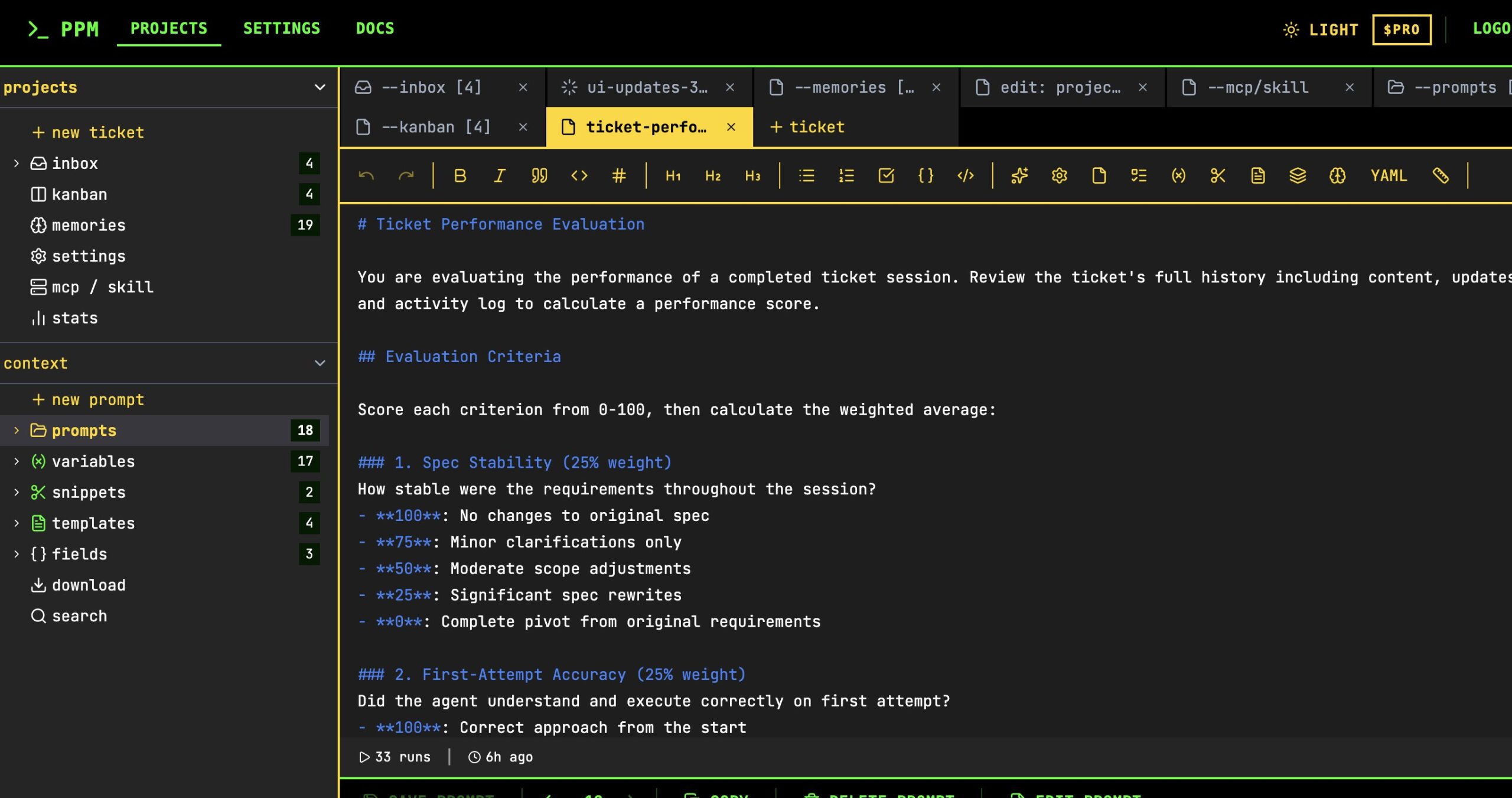
Bob Sheth suggested auto-evaluating each Claude session with score-based criteria. Boris called it a "cool idea." The concept involves creating a skill that evaluates session quality across dimensions like code correctness, first-attempt accuracy, and adherence to project conventions — pulling out learnings over time.
Handling Large Codebases
Sterling Crispin raised the common problem of Claude re-implementing similar code in multiple places as codebases grow. Boris's solution involves two strategies:
- Make Claude explore the codebase to find reusable functions as part of its plan before writing any new code
- Check for duplication in CI using
claude -p(pipe mode) as part of your continuous integration pipeline to catch duplicated code automatically
# Use Claude in CI to check for code duplication
claude -p "Review the PR diff for code duplication. Check if any new code \
duplicates existing functions in the codebase. Report findings."12 Frequently Asked Questions
Boris's top tips include: (1) running 3–5 parallel git worktrees, (2) starting complex tasks in plan mode, (3) investing in CLAUDE.md memory, (4) creating reusable skills, (5) using MCP integrations for bug fixing, (6) challenging Claude as a code reviewer, (7) using Ghostty terminal with custom statusline, (8) leveraging subagents for parallel compute, (9) using Claude for data analytics, and (10) enabling learning output styles.
Git worktrees let you create multiple working directories from the same repository. With Claude Code, you spin up 3–5 worktrees each running its own Claude session in parallel. Use git worktree add -b my-worktree .claude/worktrees/my-worktree origin/main to create one, then launch Claude in each. This is the team's #1 productivity tip.
CLAUDE.md is a persistent memory file read at the start of every Claude Code session. It stores project conventions, coding standards, common mistakes to avoid, and architectural decisions. The Anthropic team updates it after every correction, asking Claude to write rules for itself to prevent repeated mistakes.
Plan mode (reached by cycling permission modes with Shift+Tab) makes Claude use read-only operations to analyze your codebase and create a detailed implementation plan before writing code. The Anthropic team invests heavily in perfecting the plan so Claude can one-shot the implementation. One team member even has a second Claude review the plan as a staff engineer.
Yes. In the Code tab of the Claude desktop app each conversation is a session, and the sidebar lets you run several in parallel. Click + New, or press Cmd+N on macOS or Ctrl+N on Windows. In a Git repository you can turn on Worktree so a session runs in its own worktree; it is off by default. The video in Tip 1 shows three sessions working at the same time.
Boris Cherny created Claude Code as a side project in September 2024 while working at Anthropic. He is the Head of Claude Code at Anthropic, previously a Principal Software Engineer (IC8) at Meta/Facebook, and author of O'Reilly's Programming TypeScript. Anthropic said Claude Code reached $1B in run-rate revenue in November 2025.
13 Abbreviations & Glossary
Abbreviations & Glossary
Reference guide for technical terms and abbreviations used throughout this article.
