Configure Salesforce MCP Server for Claude Code & MCP Clients
Connect AI assistants to Salesforce using Model Context Protocol. Master DX MCP Server, Hosted MCP, OAuth configuration, and mcp-remote setup.
Reading time: ~18 minutes| Last Updated: January 2026
In This Guide
10
In-Depth Sections
MCP Feature
60+
Available Tools
In This Guide
5
FAQs Answered
MCP Feature
2
Server Types
1
What is Model Context Protocol (MCP)?
Quick Answer: MCP (Model Context Protocol) is an open standard created by Anthropic that enables AI assistants like Claude to securely connect with external tools, APIs, and data sources. For Salesforce developers, it means Claude Code can directly interact with your orgs to query data, deploy metadata, and run tests.
According to the official Salesforce Developers blog, MCP acts as a "universal translator between AI agents and your business data" - similar to how USB standardized device connections. This standardization allows any MCP-compatible AI client to work with any MCP server without custom integrations.
Why MCP Matters for Salesforce Development
Before MCP, integrating AI assistants with Salesforce required custom code, API wrappers, and significant development effort. With MCP, you can:
Query Salesforce data directly from your IDE using natural language
Deploy and retrieve metadata without switching to command line
Run Apex tests and get results analyzed by AI
Manage users and permissions through conversational commands
Get LWC development assistance with context-aware suggestions
Example: "Get me Opportunities from last quarter"
AI Assistant
Claude Code, Cursor, Windsurf
"Get Opportunities from last quarter"
MCP Protocol
Standardized communication
Tool: run_soql_query
Salesforce MCP Server
Executes SOQL query
SELECT Id, Name, Amount FROM Opportunity WHERE CloseDate = LAST_QUARTER
data toolset
Salesforce Org
Returns query results
47 Opportunities, $2.3M total
2
Salesforce MCP Server Options
Salesforce provides two official approaches to MCP connectivity, each designed for different use cases. Understanding these options helps you choose the right setup for your workflow.
Salesforce DX MCP Server
Local CLI-based (Developer Preview)
Runs locally using Salesforce CLI credentials
60+ tools for metadata, data, testing, LWC development
No OAuth setup required - uses existing CLI auth
Best for: Developers with Salesforce CLI already installed
Package:@salesforce/mcp on npm
Salesforce Hosted MCP Servers
Cloud-based (Beta)
Runs on Salesforce infrastructure - no local CLI needed
OAuth authentication with Connected Apps
Endpoints: sobject-all, invocable_actions
Best for: Teams without CLI access or cloud-first workflows
Requires: mcp-remote package for stdio clients
Recommendation: If you're a Salesforce developer with Salesforce CLI already set up, start with the DX MCP Server. It's easier to configure and provides more comprehensive tooling. Use Hosted MCP Servers when you need OAuth-based access or don't want to install the CLI.
3
Salesforce DX MCP Server Setup
The Salesforce DX MCP Server is the recommended approach for developers already using Salesforce CLI. It provides the most comprehensive set of tools and requires minimal configuration.
Specify authorized orgs. Values: org alias, DEFAULT_TARGET_ORG, DEFAULT_TARGET_DEV_HUB, or ALLOW_ALL_ORGS
--toolsets
No
Enable specific tool groups (comma-separated). See section 4 for available toolsets.
--tools
No
Enable individual tools beyond selected toolsets
--allow-non-ga-tools
No
Include beta/preview tools not yet generally available
--no-telemetry
No
Disable anonymous usage data collection
--debug
No
Enable verbose logging for troubleshooting
Security Note: Use ALLOW_ALL_ORGS with caution as it grants MCP access to all locally authorized orgs. For better security, explicitly specify only the orgs needed using their aliases.
Verify Connection
After configuring, restart Claude Code and use the /mcp command to check server status. You should see "Salesforce DX" listed with available tools.
4
Available Toolsets & Tools
The Salesforce DX MCP Server organizes its 60+ tools into logical toolsets. According to the @salesforce/mcp npm package, you can selectively enable toolsets to reduce context window consumption and improve performance.
Toolset
Description
Key Capabilities
orgs
Org management
List orgs, view org details, check connections
data
Data operations
SOQL queries, record CRUD, bulk operations
metadata
Metadata management
Deploy, retrieve, list metadata components
users
User management
Permission sets, profiles, user assignments
testing
Test execution
Run Apex tests, agent tests
lwc-experts
LWC development
Component analysis, best practices, optimization
aura-experts
Aura migration
Aura to LWC migration assistance
code-analysis
Static analysis
Code quality checks, security scanning
mobile
Mobile development
Mobile app features and testing
scale-products
Performance
Apex antipattern detection
all
All toolsets
Enables all 60+ tools (use with caution)
Example: Focused Development Setup
For a typical LWC development workflow, use this focused configuration:
Performance Tip: Start with fewer toolsets and add more as needed. The all toolset loads 60+ tools which can significantly impact context window and response times.
5
Salesforce Hosted MCP Servers (Beta)
According to the Salesforce Developers announcement, Hosted MCP Servers run on Salesforce infrastructure and expose specific Salesforce APIs as MCP tools - all without writing code. These servers use OAuth authentication and require the mcp-remote package to connect from stdio-based clients like Claude Code.
Before connecting to Hosted MCP Servers, complete these steps in your Salesforce org:
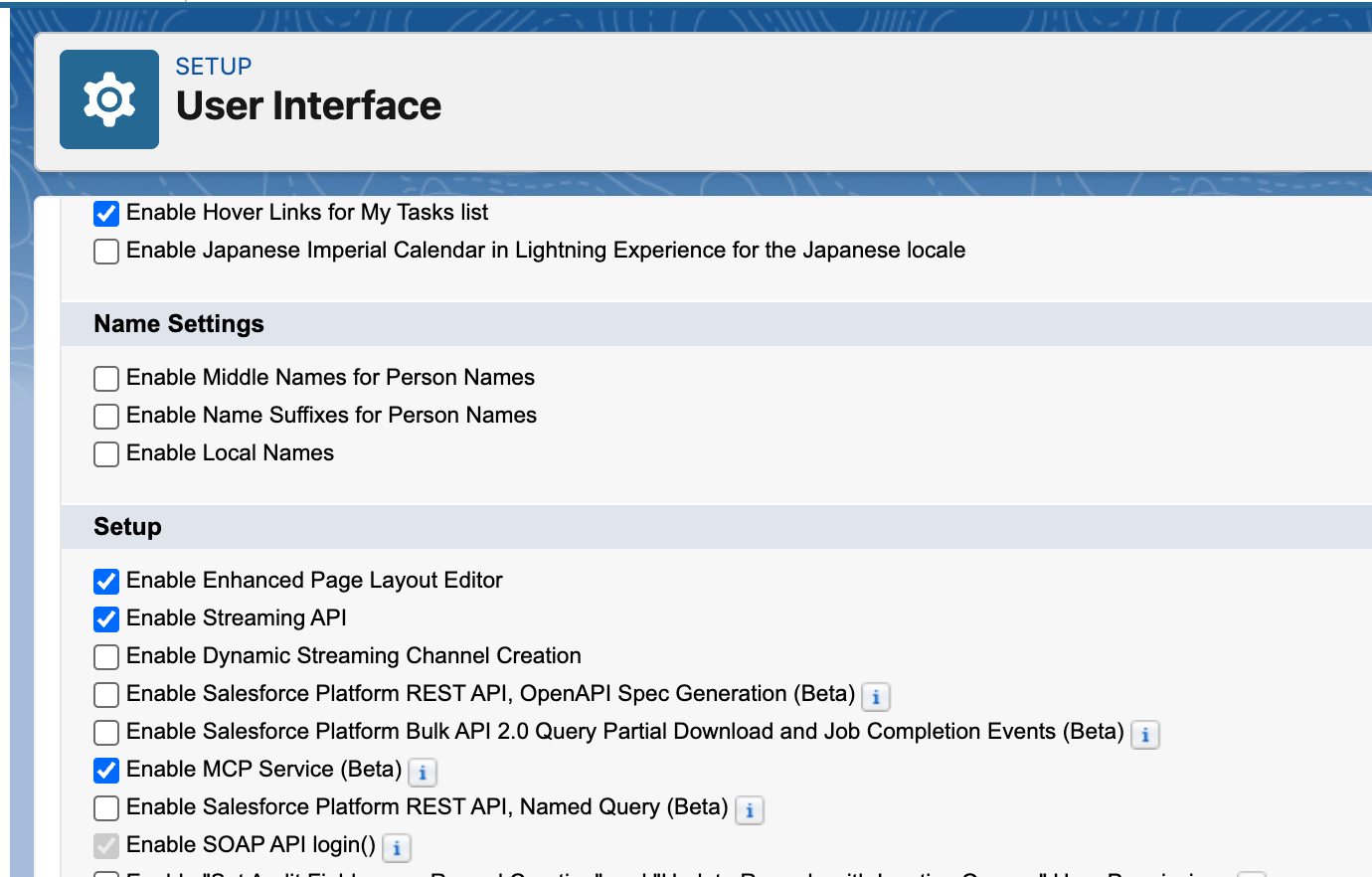
1. Enable MCP Service (Beta)
Setup > User Interface > User Interface > Enable MCP Service (Beta)
Enable MCP Service in Salesforce Setup - Navigate to User Interface settings and check the "Enable MCP Service (Beta)" option.
Note: This setting location may change in future Salesforce releases as the feature moves to GA.
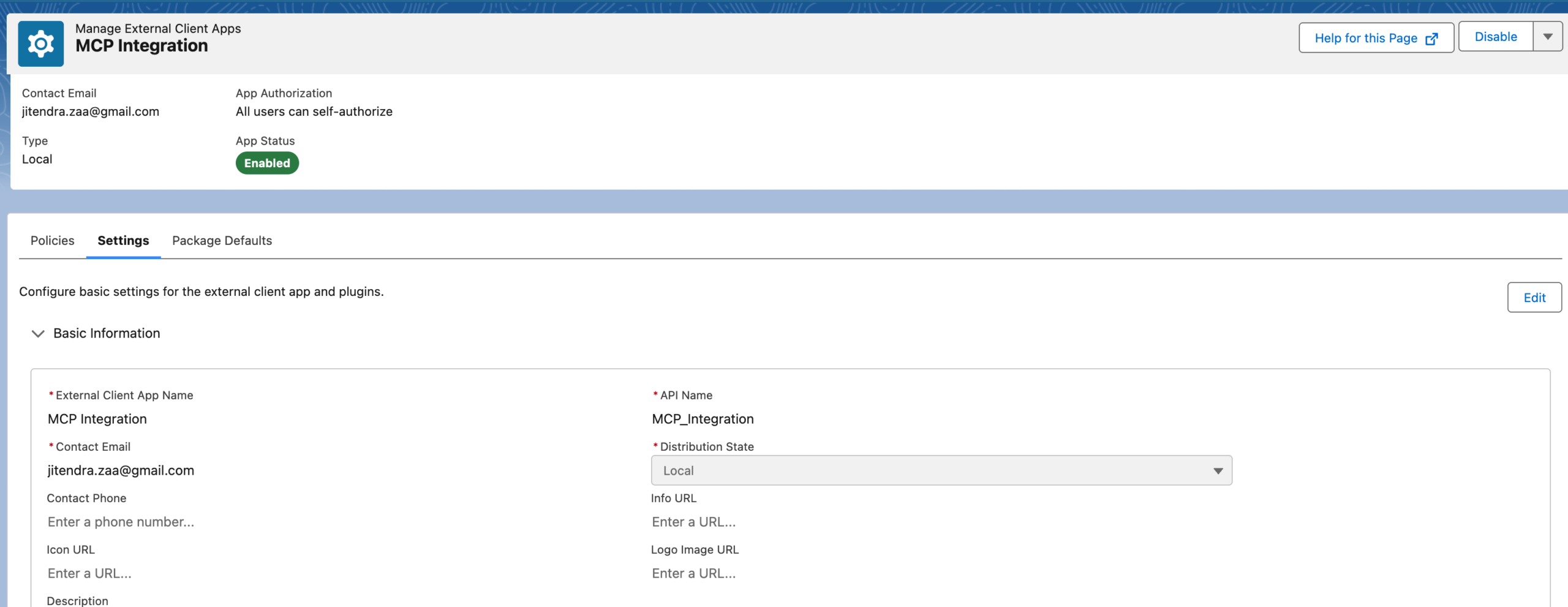
Configure the External Client App with OAuth settings for MCP access:
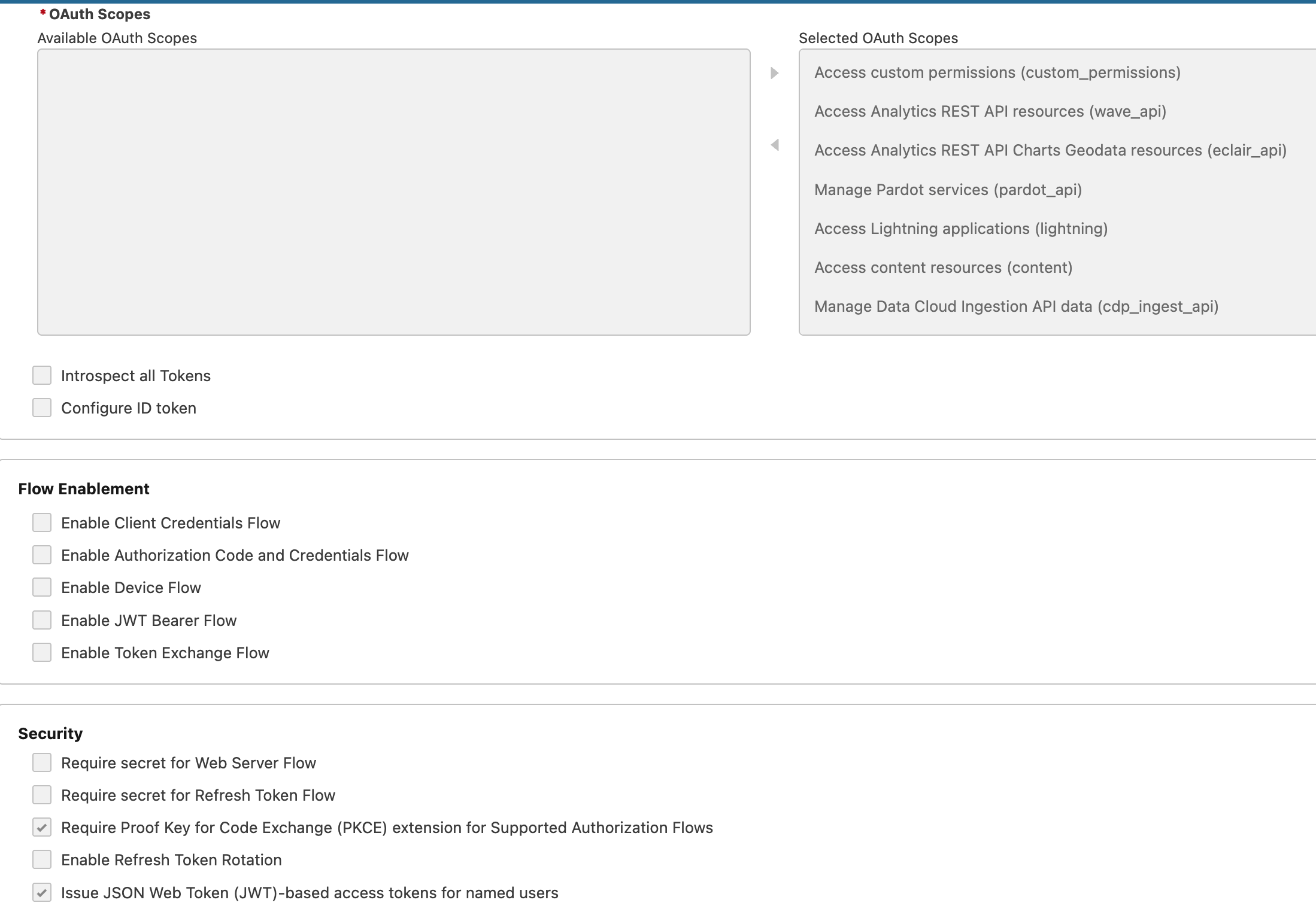
External Client App OAuth Settings - Configure the callback URL and select required OAuth scopes (api, refresh_token, sfap_api) for MCP server access.
3. Configure Security Settings
Set up the security policies for your External Client App:
External Client App Security Settings - Configure OAuth policies, permitted users, and session settings for secure MCP access.
4. Save Client Credentials
After saving, click "Manage Consumer Details" to copy your Consumer Key (client_id) and Consumer Secret (client_secret) for MCP configuration.
Beta Notice: Salesforce Hosted MCP Servers are currently in beta with GA targeted for February 2026. Beta services are subject to the Salesforce Beta Services Terms. The setup steps and UI locations may change as the feature evolves.
6
OAuth Configuration & Scopes
OAuth authentication is required for Salesforce Hosted MCP Servers. According to the Salesforce OAuth documentation, you need to configure specific scopes to enable MCP functionality.
Required OAuth Scopes
Scope
Purpose
When Required
api
Access user data via REST API and Bulk API 2.0
Always
refresh_token
Allow token refresh for persistent sessions
Always
sfap_api
Access Salesforce API Platform services
Always for Hosted MCP
einstein_gpt_api
Access Einstein GPT and AI services
For Einstein/Agentforce features
OAuth Authorization URL Example
When using mcp-remote with OAuth, the authorization flow uses URLs like this:
For Hosted MCP Servers, create an External Client App as described in Section 5. The key OAuth settings are:
Callback URL for Claude Code:
http://localhost:8080/oauth/callback
Required OAuth Scopes:
api - Manage user data via APIs
refresh_token - Perform requests at any time (offline_access)
sfap_api - Access the Salesforce API Platform
einstein_gpt_api - (Optional) Access Einstein GPT services
After saving, click "Manage Consumer Details" to copy your Consumer Key (client_id) and Consumer Secret (client_secret).
Security Warning: Never commit client secrets to version control. Use environment variables or secure credential management for production deployments.
7
mcp-remote Configuration
The mcp-remote package bridges stdio-only MCP clients (like Claude Code) to remote MCP servers with OAuth support. It handles the authentication flow and protocol translation automatically.
Callback URL: The default callback URL for Claude Code with mcp-remote is http://localhost:8080/oauth/callback. Make sure this matches your Connected App's callback URL setting.
8
Troubleshooting Common Issues
"No code verifier saved for session"
This error occurs when OAuth tokens expire or when switching between MCP server endpoints.
# Clear cached credentials
rm -rf ~/.mcp-auth/

# Restart Claude Code and re-authenticate
"MCP server not connected"
Check the following:
Verify Node.js version is 18+ with node --version
Check JSON syntax in your .mcp.json file
Ensure Salesforce CLI is installed and orgs are authorized
Run /mcp in Claude Code to see detailed error messages
The --orgs flag is required. Ensure you've specified at least one authorized org:
# List authorized orgs
sf org list

# Use a valid org alias in your configuration
"--orgs", "your-org-alias"
Enable Debug Logging
For DX MCP Server:
{
  "args": ["--debug", "--orgs", "my-org", ...]
}
For mcp-remote:
# Add --debug flag
"args": ["mcp-remote", "URL", "--debug"]

# Check logs at
cat ~/.mcp-auth/*_debug.log
Quick Fix: Most MCP connection issues can be resolved by restarting Claude Code after configuration changes. The MCP servers are initialized when Claude Code starts.
9
Frequently Asked Questions
MCP (Model Context Protocol) is an open standard by Anthropic that enables AI assistants like Claude to securely interact with external systems. For Salesforce developers, it means Claude Code can directly query data, deploy metadata, run Apex tests, and manage orgs without leaving the IDE. This dramatically accelerates development workflows and enables natural language interactions with your Salesforce environments.
Salesforce DX MCP Server runs locally using Salesforce CLI credentials and provides development-focused tools like metadata deployment, Apex testing, and LWC analysis. It requires Salesforce CLI to be installed but needs no OAuth setup. Salesforce Hosted MCP Servers run on Salesforce infrastructure, use OAuth authentication with Connected Apps, and provide API access to sObjects and invocable actions. Choose DX MCP for development workflows with CLI, and Hosted MCP for OAuth-based access without local CLI requirements.
The required OAuth scopes are: api for REST API access, refresh_token for token persistence, and sfap_api for Salesforce API Platform access. For Einstein and Agentforce features, you may also need einstein_gpt_api scope. Configure these in your Connected App's OAuth settings, and ensure the callback URL matches your mcp-remote configuration (default: http://localhost:8080/oauth/callback).
This error occurs when switching between MCP server endpoints or when OAuth tokens expire. Clear the cached credentials by running rm -rf ~/.mcp-auth/ in your terminal, then restart Claude Code to re-authenticate with fresh tokens. If the issue persists, verify your Connected App settings and ensure the callback URL is correctly configured.
Yes, Salesforce MCP servers work with any MCP-compatible client including Cursor, VS Code with Cline extension, Windsurf, Zed, and Trae. The configuration format is similar across clients, using JSON-based mcpServers configuration. For clients that don't support HTTP+SSE transports natively, use the mcp-remote package to bridge the connection. Check each client's documentation for specific configuration file locations.
Related Reading
Continue your Salesforce and AI development journey with these related guides:
Claude Code: The Complete Guide - Master Anthropic's AI-powered CLI tool from basic setup to advanced MCP servers and IDE integrations